How to Download TikTok Live Recordings to Your Phone
TKREC records TikTok live streams to the cloud automatically, but sometimes you want a local copy on your phone — for offline viewing during a flight, sharing a clip with a friend, or simply keeping a backup you fully control. The download process takes just a few taps: open your TKREC library, find the completed recording, and export it to your phone's local storage. This guide walks through the full workflow, covers file formats and quality options, and shares practical tips for keeping your phone organized as your recording library grows.
Why download recordings to your phone
TKREC stores all your recordings in the cloud, which means you can stream them anytime you have an internet connection. But there are solid reasons to keep local copies too:
- Offline access. If you're traveling, commuting underground, or in an area with poor connectivity, local files let you watch recordings without buffering or interruptions. Download before you leave, and the content is available wherever you go.
- Sharing with others. It's much easier to send a video file directly from your phone's gallery than to share a streaming link. Whether you're texting a friend, posting to a group chat, or uploading to another platform, a local file gives you flexibility.
- Personal backup. Cloud storage is reliable, but having a local copy gives you an extra layer of control. If you want to keep a recording long-term regardless of your subscription status, downloading it to your phone ensures you always have access.
- Editing and clipping. If you want to trim a highlight, crop a specific moment, or add the clip to a video project, you'll need the file on your device first. Local downloads let you use any editing app you already have.
Step-by-step download process
- Install TKREC from Google Play or App Store if you haven't already. Sign in and make sure you have at least one creator tracked with auto-recording enabled. For setup help, see the automatic save guide.
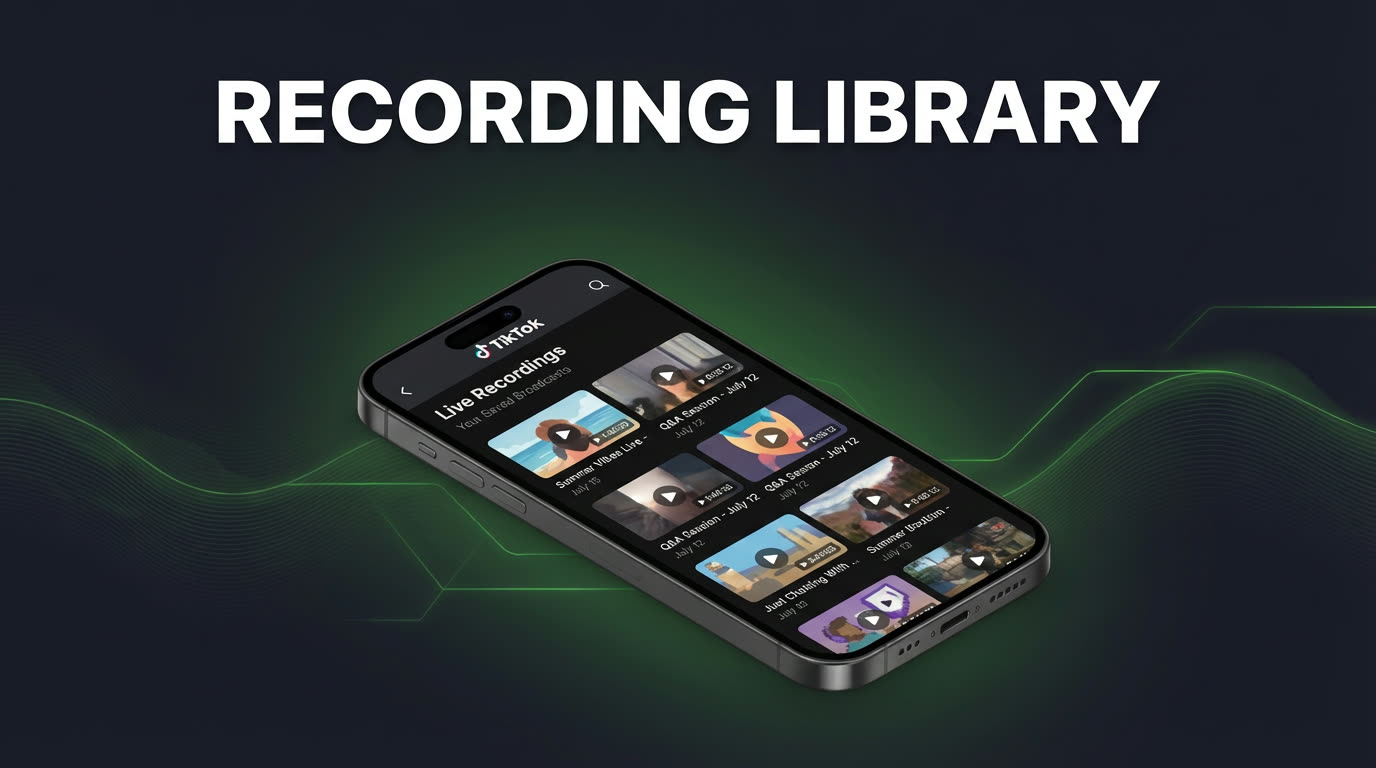
- Open your TKREC library. This is where all completed recordings appear, organized by creator and date. You'll see a list of past live sessions with their duration and recording date.
- Select the recording you want. Tap on the specific live session to preview it. You can scrub through the timeline to confirm it's the right stream before committing to a download.
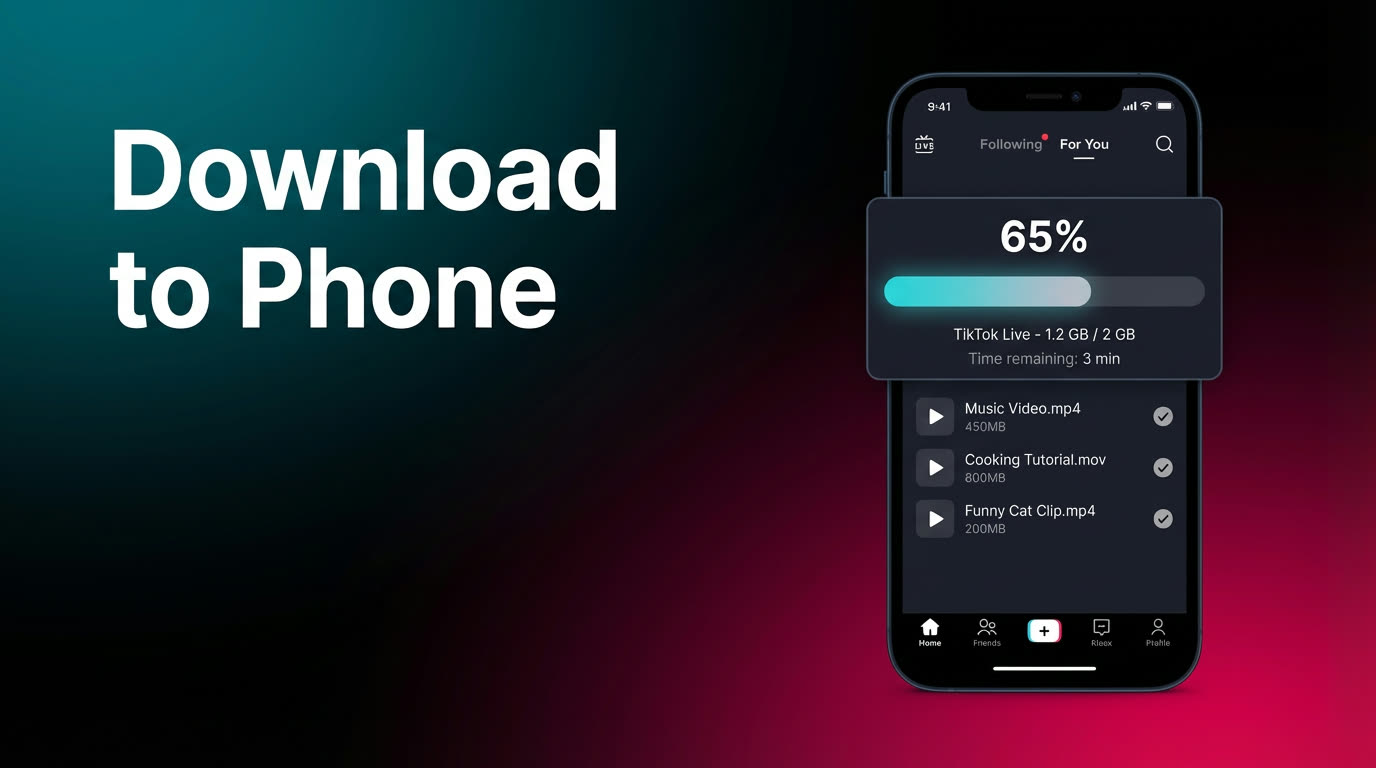
- Tap the download or export button. TKREC will begin transferring the file from cloud storage to your phone's local storage. Depending on the length of the recording and your connection speed, this may take anywhere from a few seconds to several minutes.
- Wait for the download to complete. You'll see a progress indicator. Avoid closing the app or switching to airplane mode during the transfer. Once finished, you'll get a confirmation.
- Find the file on your phone. On Android, downloaded recordings typically appear in your gallery or in the TKREC folder within your file manager. On iOS, they'll be accessible through your Photos app or the Files app depending on your system settings.
That's it — the recording is now a local file on your device, ready to watch offline, share, or edit however you want.
File formats and quality
Understanding file formats and quality settings helps you make smart choices about what to download and when:
- Video format. TKREC exports recordings in standard MP4 format, which is compatible with virtually every phone, tablet, computer, and media player. You won't need to install special codecs or converter apps.
- Quality levels. Higher quality means sharper video and better audio, but larger file sizes. If you're downloading a recording to study content details or create clips, go with the highest quality available. For casual rewatching or quick reference, a lower quality option saves storage space without sacrificing the viewing experience much.
- Typical file sizes. A one-hour TikTok live recording at standard quality is roughly 500 MB to 1.5 GB depending on the stream's original bitrate and resolution. Shorter sessions of 15–30 minutes typically range from 150 MB to 500 MB. Keep these numbers in mind when planning your downloads, especially if your phone has limited storage.
If you frequently download long recordings, consider connecting to Wi-Fi first to avoid using mobile data and to speed up the transfer.
Managing storage on your phone
As your TKREC library grows, downloaded recordings can accumulate and take up significant space. Here are practical strategies to keep things under control:
- Download selectively. You don't need to download every recording. Keep streaming from the cloud for casual viewing and only download the sessions you specifically need offline or want to keep permanently.
- Review and clean up weekly. Set a simple weekly habit: check your downloads folder, delete recordings you've already watched or no longer need, and keep only what matters. Five minutes a week prevents a storage crisis later.
- Use consistent naming. If your phone lets you rename files, adopt a simple convention like "CreatorName-Date" so you can quickly identify recordings without opening each one.
- Offload to external storage. For long-term archiving, move downloaded files to a computer, external drive, or cloud storage service you already use. This frees up phone space while keeping your collection intact.
- Monitor available space. Both iOS and Android show storage breakdowns in Settings. Check periodically and you'll always know how much room you have before your next download batch.
Compared to screen recording downloads
With screen recording, the file is already on your phone — so why use TKREC's download workflow instead? There are several important differences:
- You had to be watching. Screen recording only works if you were present during the live. If you missed the stream, there's nothing to download. TKREC captures streams automatically from the cloud, so every tracked creator's live is waiting for you regardless of whether you watched live.
- Quality difference. Screen recordings capture at your phone's screen resolution and include whatever was on screen — notification pop-ups, status bars, and any interruptions. TKREC recordings are captured directly from the original stream, resulting in a cleaner file without artifacts.
- Privacy advantage. Screen recording requires you to join the live and appear in the viewer list. TKREC's cloud recording means your account was never in the stream. When you download a TKREC recording, you're getting a file that was created with zero viewer footprint.
- File management. Screen recordings get dumped into your camera roll alongside photos and other videos, making them hard to find later. TKREC organizes recordings by creator and date in the app, so you can preview and download exactly what you need.
For a detailed technical comparison, see our TKREC vs screen recording guide.
FAQ
Can I download multiple recordings at once?
You can download recordings one after another from the library. For the smoothest experience, download in small batches rather than queuing dozens at once — this prevents storage spikes and lets you confirm each file saved correctly before moving on.
What file format are downloads saved in?
TKREC exports recordings in MP4 format, which is universally compatible with iOS, Android, Windows, and Mac devices. You can play them in any standard video player without needing additional software or codec packs.
How much storage space does a typical recording need?
It depends on the length and quality of the stream. As a rough guide, a 30-minute live recording uses approximately 200–600 MB, and a full hour can range from 500 MB to 1.5 GB. Shorter sessions under 15 minutes are usually well under 200 MB. Check your phone's available storage before starting large downloads.
Can I share downloaded recordings with others?
Yes. Once the file is on your phone, you can share it through any method your device supports — messaging apps, email, AirDrop, cloud sharing links, or social media uploads. Just be mindful of copyright and platform terms when redistributing live stream content created by others.
Will downloaded files stay on my phone if I cancel TKREC?
Yes. Once a recording is downloaded to your phone's local storage, it's a standalone file that doesn't depend on your TKREC account. Even if you uninstall the app or change your subscription, the downloaded files remain on your device until you manually delete them.
For the full TKREC workflow from setup to replay, see our complete TKREC guide. To understand the auto-recording setup that populates your library, read the automatic save guide.
Never miss a TikTok LIVE again
TKREC records TikTok live streams automatically — save, rewatch, and download.