TKREC Complete TikTok Live Guide
TKREC is a full-cycle tool for TikTok live streams: you track the creators you care about, their live sessions are automatically recorded to the cloud, and you can rewatch or download those recordings whenever it suits you. No need to be online when a creator goes live, no need to keep your phone on, and no viewer footprint left behind. This guide covers the entire workflow from first install to daily use, including tips for power users and the most common mistakes beginners make.
Getting started
Setting up TKREC takes less than two minutes. Here's the process:
- Download the app from Google Play (Android) or App Store (iOS). The app is free to install.
- Create your account or sign in. This is the account that stores your tracking list, recordings, and preferences across devices.
- Grant basic permissions. TKREC will ask for notification access so it can alert you when a tracked creator goes live or when a recording is ready to watch. Storage permissions are needed if you plan to download recordings to your device later.
Once you're signed in, you'll land on a clean home screen with an empty creator list. The next step is adding the TikTok accounts you want to follow.
Tracking creators
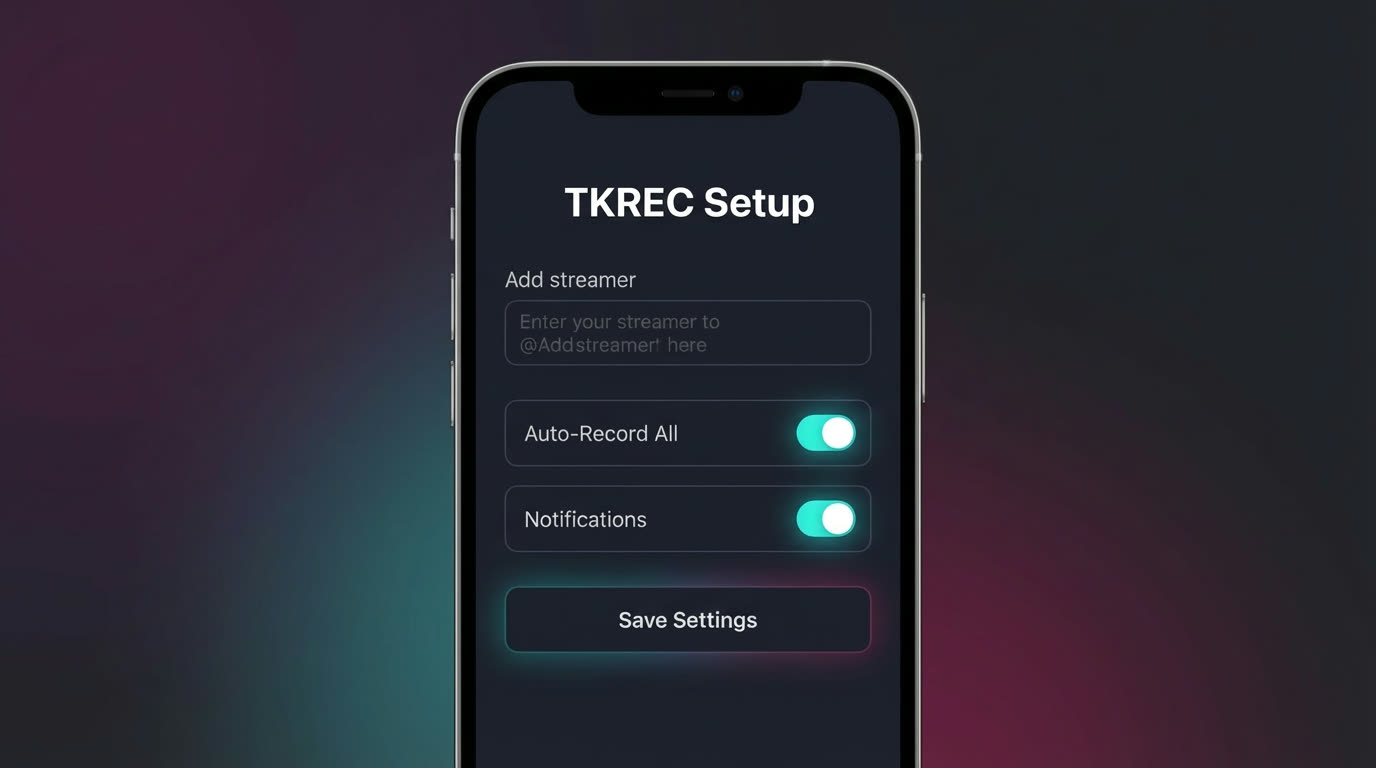
TKREC's core feature is its creator tracking system. You add TikTok usernames to your list, and the app monitors them for live activity around the clock.
- Search by username. Type the TikTok handle of the creator you want to track. TKREC will find them and show their profile so you can confirm it's the right person.
- Add multiple creators. There's no practical reason to track just one person. Build a list of the creators whose live content you want to capture — whether it's two people or twenty.
- Prioritize your list. If you follow a lot of creators, keep your most important ones near the top. This makes it easier to check their recent recordings first when browsing your library.
Once a creator is on your tracking list, TKREC watches for their live sessions. You don't need to do anything else — the system handles monitoring automatically, 24 hours a day.
Auto-recording setup
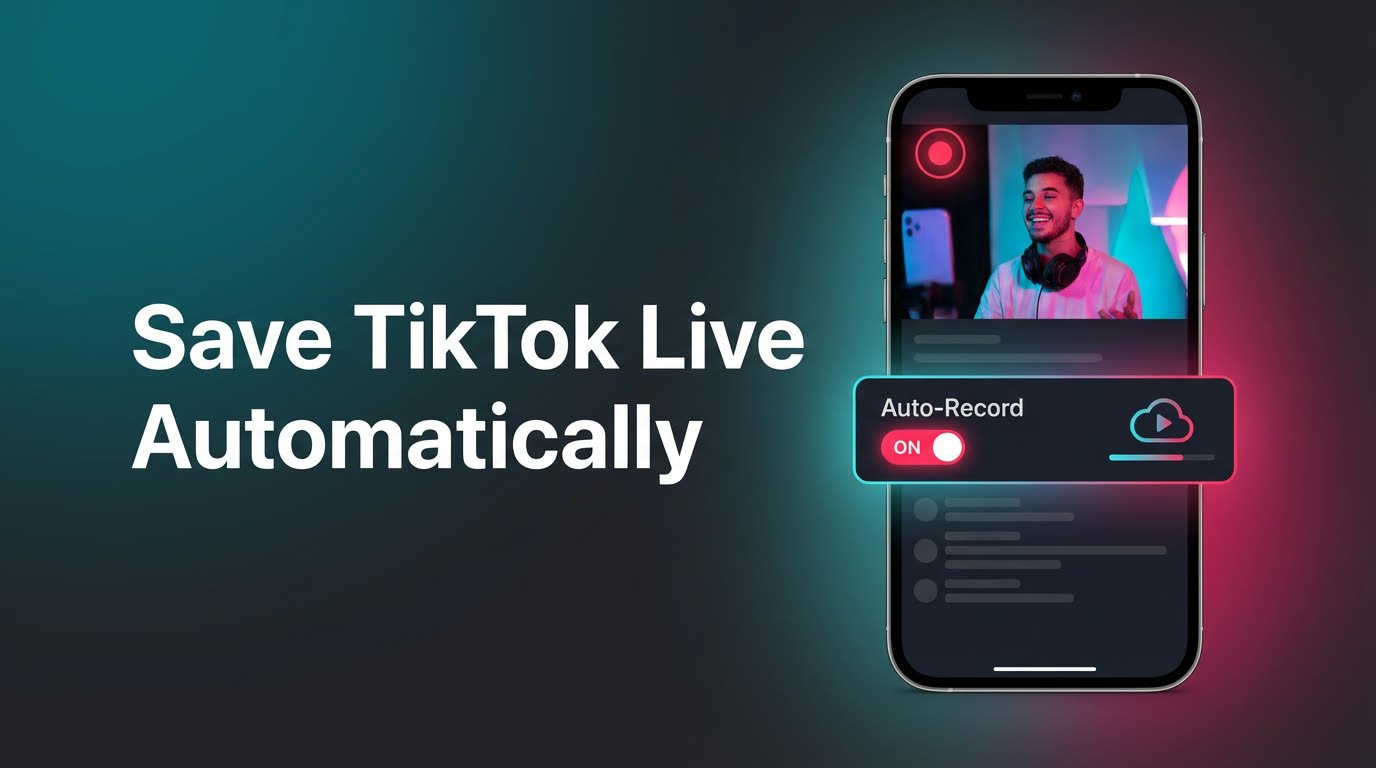
Tracking a creator is step one. The real power comes from enabling auto-recording, which tells TKREC to capture every live session the moment it starts.
Here's what happens behind the scenes:
- A tracked creator starts a TikTok live.
- TKREC's cloud servers detect the live session within seconds.
- Recording begins automatically — from the very first second of the stream.
- The recording continues until the creator ends the live.
- The completed recording appears in your TKREC library, ready to watch.
All of this happens on TKREC's infrastructure. Your phone can be off, in airplane mode, or out of battery — the recording still runs. Your TikTok account is never used to join the live, which means there's zero viewer footprint. For a detailed walkthrough of the auto-recording configuration, see the automatic save guide.
Browsing your library and rewatching
Every auto-recorded session ends up in your TKREC library, organized by creator and date. This is where you'll spend most of your time in the app.
- Browse by creator. Each tracked creator has their own section. Tap a creator to see all their recorded live sessions in reverse chronological order — most recent first.
- Browse by date. If you're looking for a specific session, you can filter or scroll by date to narrow things down quickly.
- Preview before watching. Tap a session to see its duration, recording date, and a preview. This helps you confirm it's the right stream before committing to a full rewatch.
- Watch at your own pace. Rewatch recordings on your schedule. Pause, skip forward, or jump to a specific moment. Unlike a live stream, you're in full control of the playback.
The library is the foundation of the TKREC experience. It turns ephemeral live content into a permanent, browsable archive that you can access anytime. For more on the rewatch workflow, see our rewatch guide.
Downloading recordings
Cloud storage is great for streaming, but sometimes you need a local copy. TKREC lets you download any recording from your library to your phone's storage:
- Open your library and select the recording.
- Tap the download or export button.
- Wait for the file to transfer — progress is shown in the app.
- Find the downloaded file in your phone's gallery or files app.
Downloaded files are saved in MP4 format, compatible with all major devices and media players. File sizes vary based on stream length and quality — expect roughly 500 MB to 1.5 GB per hour of recorded content.
For detailed guidance on file formats, quality settings, and storage management, read our complete download guide.
Power user tips
Once you have the basics down, these habits will help you get the most out of TKREC:
- Review daily, download selectively. Check your library each day to see what's new. Stream recordings from the cloud for a quick review and only download the sessions you want to keep offline or share. This keeps your phone storage lean.
- Clean up your tracking list regularly. If you've lost interest in a creator or they've stopped going live, remove them from your list. A focused tracking list means fewer irrelevant recordings cluttering your library.
- Use notifications wisely. TKREC can notify you when a tracked creator goes live or when a new recording is ready. Enable these for your top-priority creators so you see important content quickly. Disable them for lower-priority ones to avoid notification overload.
- Maintain a weekly cleanup routine. Once a week, take five minutes to: remove creators you no longer track, delete downloaded files you've already watched, and review your cloud library for sessions worth keeping. This small investment prevents clutter from building up over months.
- Cross-reference with other guides. Different use cases benefit from specialized knowledge. If privacy matters most, read the private recording guide. If you're comparing approaches, see TKREC vs screen recording. For choosing the right app, check out best TKREC app for 2026.
Common mistakes to avoid
Most problems new users encounter are easy to prevent:
- Forgetting to enable auto-recording. Adding a creator to your tracking list doesn't automatically start recording. You need to explicitly enable auto-recording for each creator. Without it, TKREC monitors the account but doesn't capture anything.
- Downloading everything. It's tempting to download every recording to your phone, but this fills up storage fast. Use cloud streaming for casual viewing and download only what you genuinely need locally.
- Ignoring storage management. Phone storage isn't infinite. A month of unchecked downloads can eat through gigabytes. Set a regular cleanup schedule before it becomes a problem.
- Tracking too many creators at once. Start with your top five to ten creators, learn the workflow, and expand from there. Tracking fifty creators on day one gives you a flood of recordings that's hard to keep up with.
- Expecting TKREC to open TikTok for you. TKREC operates independently in the cloud. It doesn't interact with your TikTok app or require you to log into TikTok. The two apps are separate — that's what makes private recording possible.
FAQ
Is this guide suitable for beginners?
Yes. It's structured to take you from zero to a working daily routine. Each section builds on the previous one, so you can follow along step by step. If you're already familiar with the basics, jump straight to the power user tips or common mistakes sections for the most value.
Does TKREC work when my phone is off?
Yes. All recording happens on TKREC's cloud servers, completely independent of your device. Your phone can be powered off, in airplane mode, or out of battery. The recording still runs, and the completed file will be in your library when you open the app.
Will the creator know I'm recording their live?
No. TKREC records from the cloud without using your TikTok account to join the stream. There's no viewer footprint — the creator won't see your name in their viewer list, and TikTok sends no notifications. For the full privacy breakdown, read our private recording guide.
How is TKREC different from screen recording?
Screen recording requires you to be watching the live in real time with your screen on. It captures at your screen's resolution, includes notifications, drains your battery, and puts your name in the viewer list. TKREC records from cloud servers automatically, produces cleaner files, works while your phone is off, and leaves zero trace on the platform. For a side-by-side breakdown, see our comparison guide.
Can I use TKREC as a long-term archive workflow?
Absolutely. TKREC is built for exactly this use case. Cloud recordings stay in your library, and you can download the ones you want to keep permanently. Combined with a weekly cleanup routine and selective downloads, it scales much better than ad-hoc screen recording habits. Many users run TKREC continuously to build a searchable archive of their favorite creators' live content over months or years.
For more TKREC resources: best TKREC app for TikTok live 2026 · how to rewatch TikTok lives · automatic save guide · TKREC vs screen recording · private recording guide · download guide
Never miss a TikTok LIVE again
TKREC records TikTok live streams automatically — save, rewatch, and download.