How to Rewatch TikTok Lives with TKREC
The easiest way to rewatch TikTok lives is to let TKREC record them automatically, then open your replay library and play by creator or date.
There's a frustrating gap in how TikTok handles live content. While regular TikTok videos stay on a creator's profile permanently, live streams operate on a completely different set of rules. Most disappear the instant the broadcast ends, with no reliable way for viewers to access them afterward. If you watched a live but want to revisit a specific moment — a product recommendation, a tutorial step, a conversation you half-caught — your only option is to hope the creator saved it. And even then, finding it again means manually checking their profile and scrolling through their posts.
TKREC solves this by recording TikTok lives automatically in the cloud and building a searchable library of every broadcast you've tracked. Here's how to set it up and make the most of the replay workflow.
Why rewatching TikTok lives is hard natively
TikTok does not automatically save or archive live streams for viewers. When a creator ends their LIVE, the content is gone unless they manually choose to save it. Here's what you're working against:
- Creator controls everything — whether a live gets saved is entirely the creator's decision. There's no setting you can toggle as a viewer to preserve it.
- No dedicated replay section — even saved lives appear as regular videos on the creator's profile. There's no "past lives" tab or filter, so you have to scroll through all their content to find one.
- No notification when replays are available — TikTok doesn't alert you when a creator saves their live. You have to manually check.
- Creators can delete at any time — even if a live was saved initially, the creator can remove it hours or days later without warning.
- No way to save moments yourself — TikTok offers no built-in bookmark, clip, or recording feature for viewers during a live stream.
The result is that rewatching any TikTok live is unreliable at best and impossible at worst. If the creator didn't save it, or saved it but deleted it later, that content is gone permanently. For viewers who follow multiple creators with regular live schedules, this creates a constant cycle of missed content.
The TKREC method step by step
TKREC replaces the guesswork with a simple automated workflow. Here's how to set it up:
- Install TKREC — download from Google Play or the App Store and create your account.
- Add creators to your auto-record list — search for TikTok creators by username and add them. You can add as many as you need.
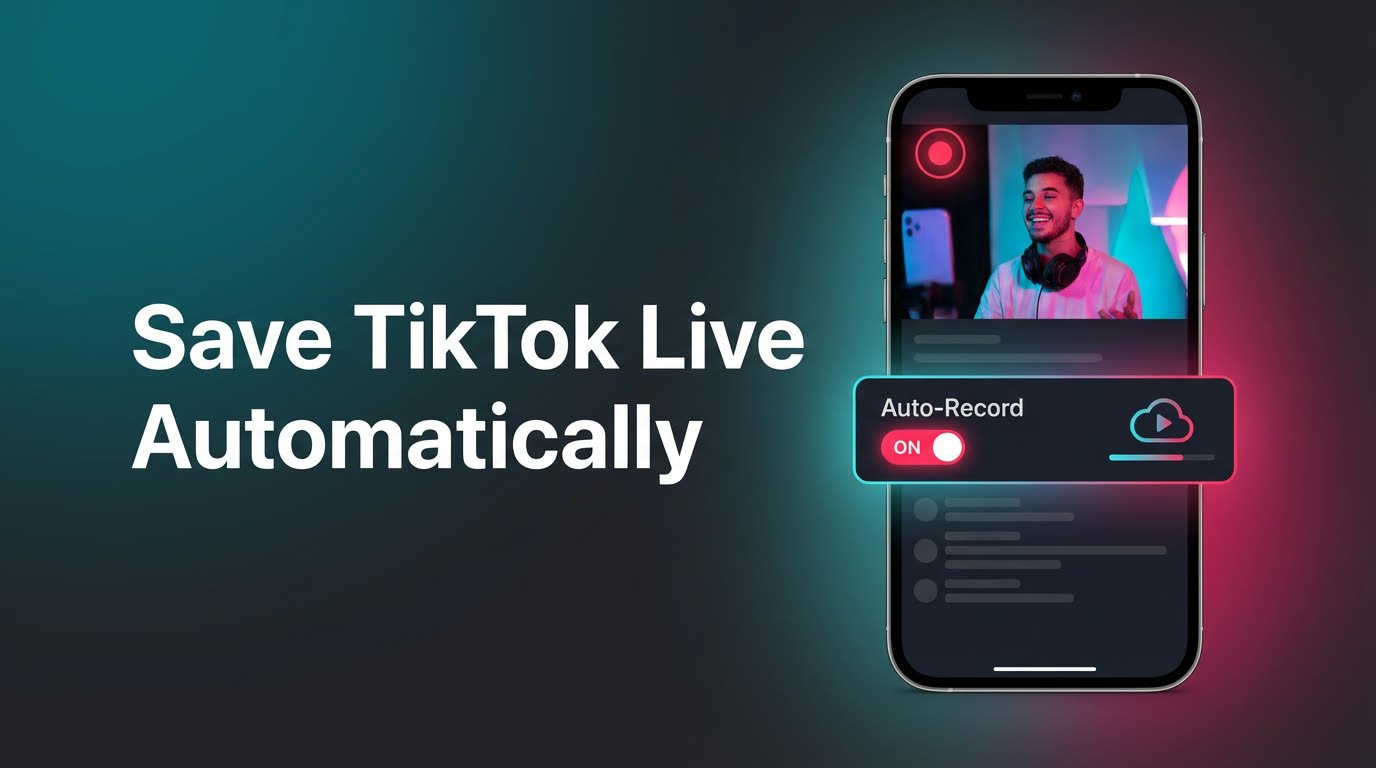
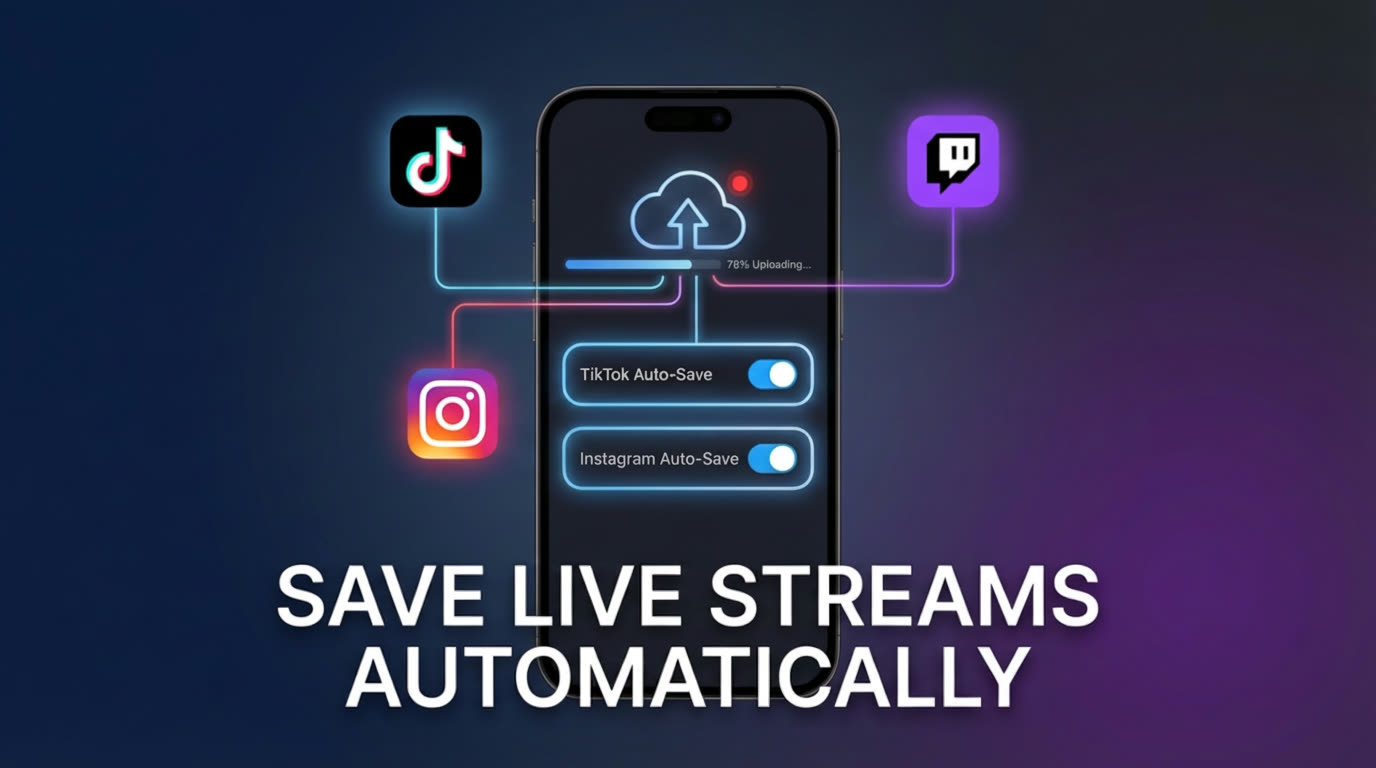
- Enable automatic recording — toggle on auto-record for each creator. TKREC's cloud servers will now monitor their live status 24/7.
- Wait for recordings to appear — when a tracked creator goes live, TKREC records the entire broadcast on cloud servers. You'll get a push notification when it's ready.
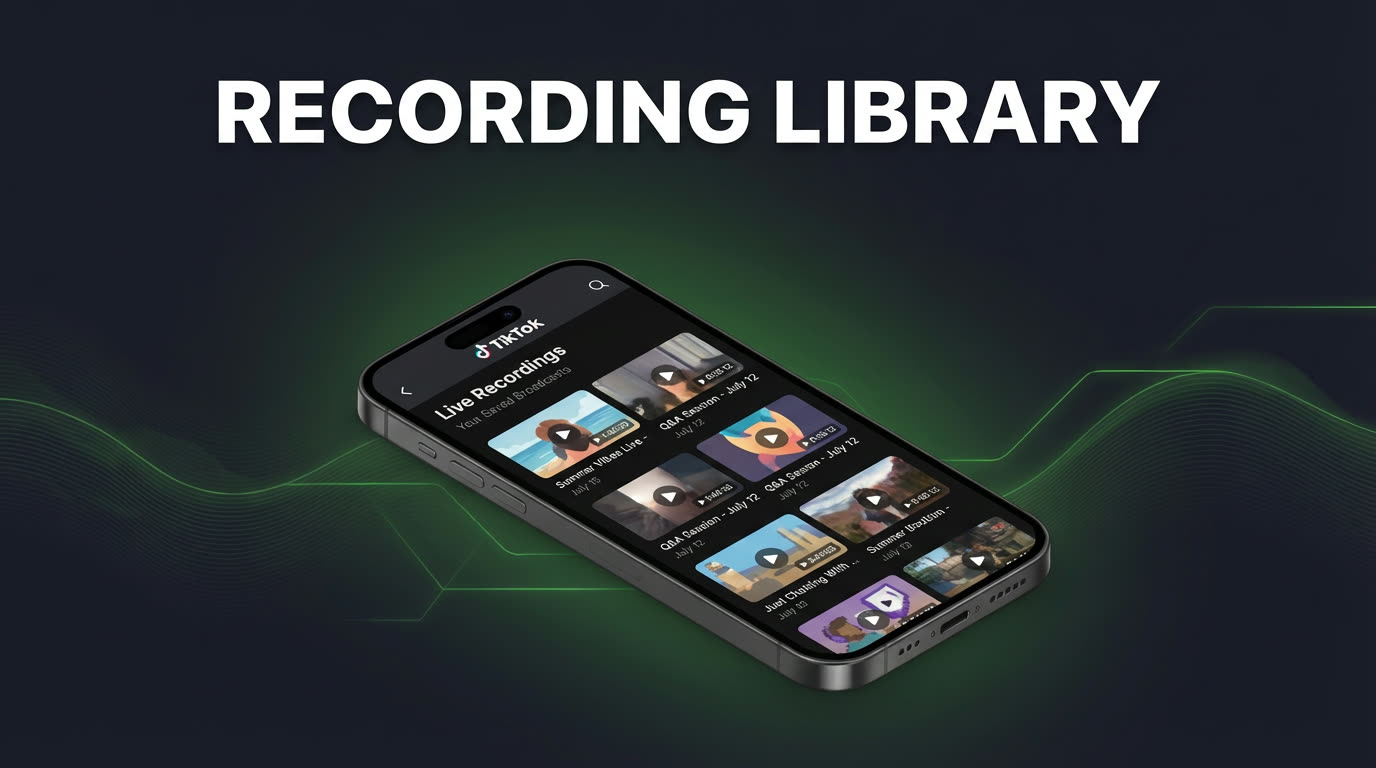
- Open your library and rewatch — browse recordings by creator or date. Play directly in-app or download to your phone for offline viewing.
The entire setup takes under two minutes. After that, rewatching is as simple as opening the app and picking a recording. No manual effort required.
Building your replay library
Once auto-recording is active, your TKREC library gradually fills with every live broadcast from the creators you track. This creates something TikTok doesn't offer: a personal archive of live content organized by creator and date.
A few practical benefits of having this library:
- Revisit specific moments — scrub through a recording to find the exact segment you want, whether it's a recipe step, a product link, or a conversation.
- Compare streams over time — useful if you follow creators who do recurring live events like weekly Q&As or product launches.
- Share timestamps with friends — when you download a recording, you can share specific clips directly.
- Catch up after vacation or busy weeks — if you were offline for a few days, your tracked creators' lives are waiting in your library when you come back.
For details on getting recordings onto your device, see how to download TikTok live recordings to phone.
Daily workflow tips
To get the most out of TKREC's rewatch capability, a few habits help:
Start with your top creators first. Don't add every creator you've ever watched — begin with the five or ten you genuinely want archives for. A focused list produces a cleaner library and makes it faster to find specific recordings.
Review recordings weekly. Set aside a time to scan through the week's recordings. Watch what interests you, skip what doesn't, and delete local downloads you've finished with. This keeps your library manageable and your phone storage clear.
Use filters aggressively. TKREC lets you filter by creator and date. Use these instead of scrolling — especially once your library has dozens of recordings.
Expand gradually. Once you're comfortable with your initial list, add more creators. The system scales well, and having recordings from a larger pool of creators means you'll always have something worth watching.
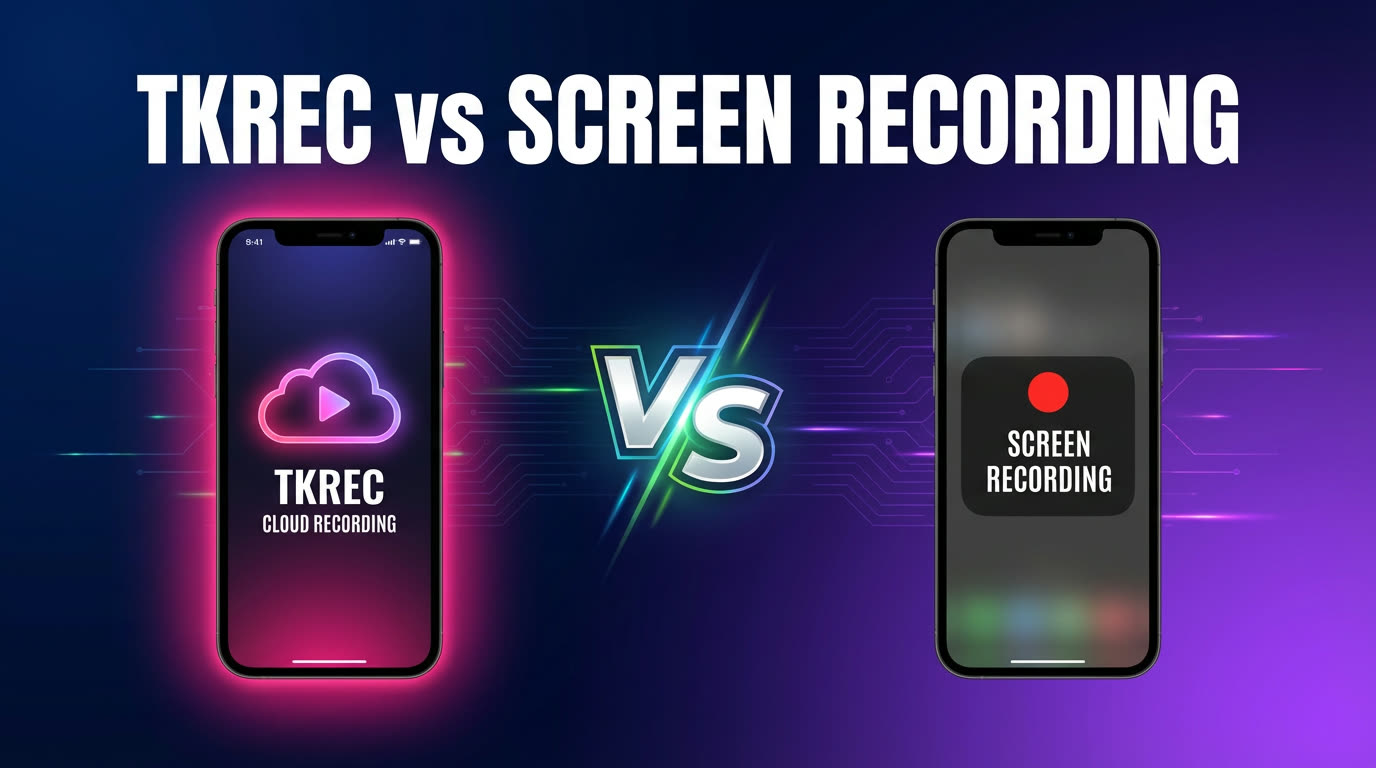
For a comparison of TKREC's approach against manual screen recording, see TKREC vs screen recording for TikTok live.
Privacy when rewatching
When you rewatch a TikTok live directly on TikTok (if a replay exists), you're viewing it through your personal account. Your username can appear in viewer analytics. With TKREC, the recording was captured by cloud servers during the original broadcast — your account was never involved. When you rewatch from your TKREC library, you're watching a private copy. No viewer footprint, no username in any list, no trace that you watched.
This is particularly useful if you rewatch competitor streams for research, monitor certain creators without interacting, or simply want your viewing to stay private. Learn more about this in how to record TikTok live privately with TKREC.
FAQ
Can I rewatch lives I missed yesterday?
Yes, as long as the creator was in your TKREC tracking list before they went live and the recording completed successfully. TKREC captures the full broadcast from the first second, so even if you were asleep or busy during the stream, the complete recording will be in your library the next time you open the app.
Can I keep recordings offline?
Yes. TKREC has a built-in download feature that saves recordings as standard video files to your phone. You can watch them in any video player without an internet connection. Just remember to manage your storage by deleting old downloads once you've finished with them.
What happens if a creator goes live multiple times in one day?
TKREC records each live session separately. If a creator does a morning stream and an evening stream, you'll find both as individual entries in your library, each labeled with the correct time. No manual effort needed — the auto-record system handles overlapping schedules from different creators as well.
Does rewatching in TKREC use a lot of data?
Streaming a recording in-app uses a similar amount of data as watching any video online. If you're on a limited data plan, download recordings while on Wi-Fi and then watch them offline. This way you use no mobile data for playback at all.
Can I rewatch lives from creators I wasn't tracking before?
No — TKREC can only record lives for creators you've added to your list before they go live. It's not possible to retroactively record a broadcast that already happened. That's why it's worth adding your key creators as soon as you install the app. For a broader guide to all of TKREC's features, see the TKREC complete TikTok live guide.
Never miss a TikTok LIVE again
TKREC records TikTok live streams automatically — save, rewatch, and download.