How to Save TikTok Live Automatically with TKREC
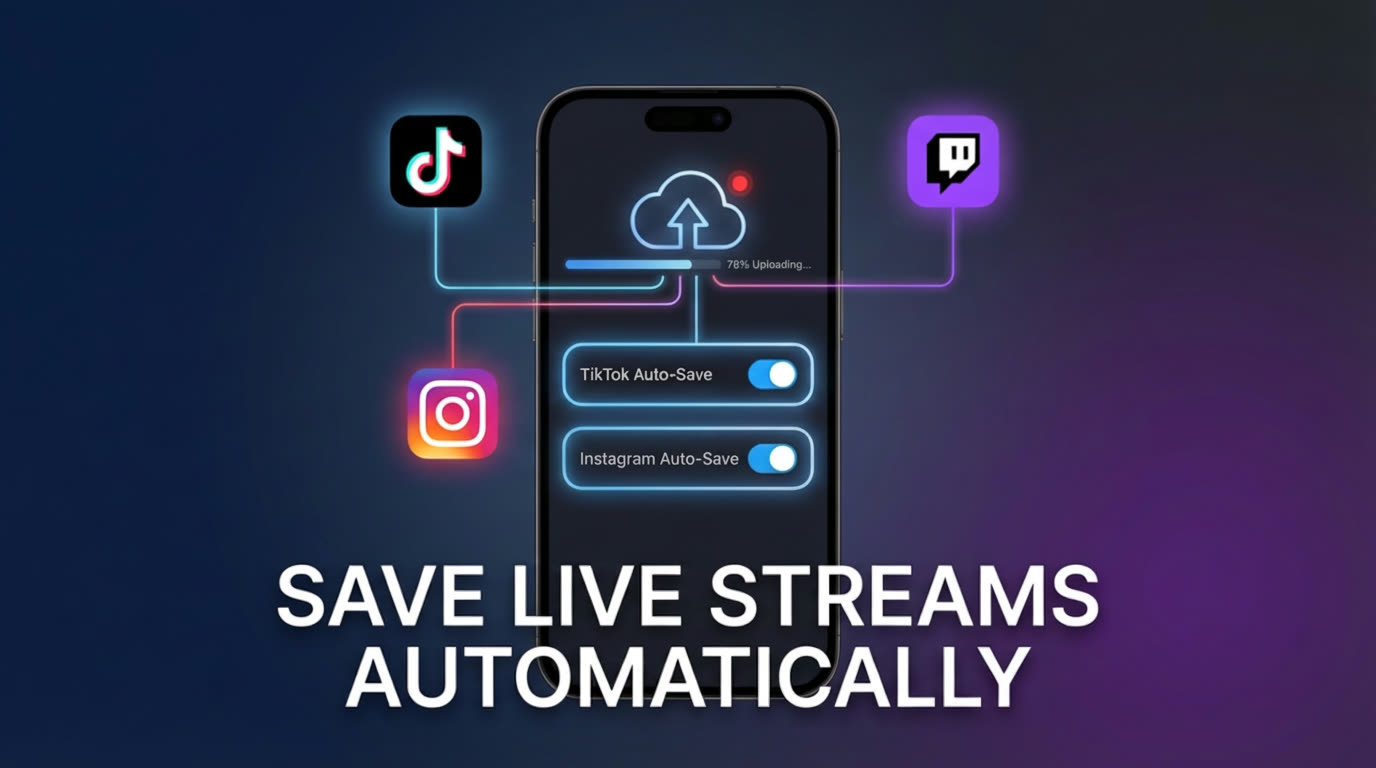
To save TikTok lives automatically, add creators to TKREC's auto-record list, keep notifications enabled, and review your library after each stream ends.
The most common complaint from regular TikTok live viewers is missing content. A creator you follow goes live at 2 AM, or while you're at work, or during a commute — and by the time you open the app, the broadcast is over. If the creator didn't save it to their profile (and most don't), that content is gone permanently. Screen recording isn't a real solution either, because it requires you to be there, with your phone open and TikTok running, for the entire duration of the stream.
Automatic saving through TKREC eliminates this problem entirely. You set it up once, and every live stream from your tracked creators gets recorded on cloud servers — whether you're watching, sleeping, or offline. Here's how to configure it and get the most out of the workflow.
Why manual saving fails
Before TKREC, the typical approach to saving TikTok lives involved one of these methods — all of them flawed:
- Screen recording — requires you to have TikTok open the entire time. If you lock your phone, get a call, switch apps, or your battery dies, the recording stops. You also miss any stream that starts while you're not watching.
- Hoping the creator saves it — this depends entirely on the creator remembering to tap "Save" after the broadcast ends. Most don't bother, and even if they do, they might delete it later.
- Third-party browser tools — some desktop tools can record streams, but they require a computer to be running, a browser tab open, and manual setup for each live. They don't scale if you follow more than a couple of creators.
The core issue is the same in every case: manual processes break the moment you're unavailable. Automatic recording removes you from the equation entirely.
Setup in detail
Getting TKREC's auto-save running takes about two minutes:
- Download TKREC — get it from Google Play or the App Store.
- Create your account — sign up with email, Google, or Apple. Your account syncs across devices, so you can add creators on your phone and check recordings on a tablet later.
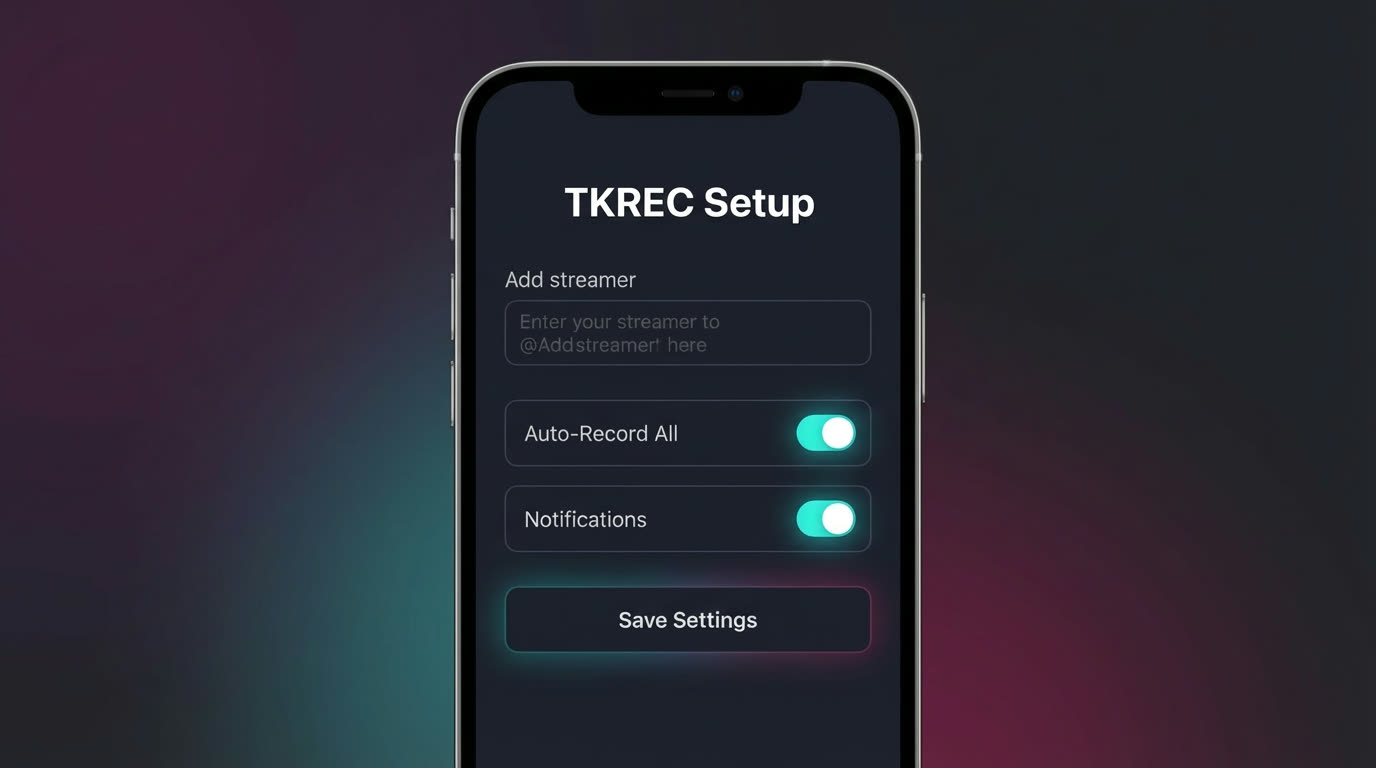
- Search for creators — type the TikTok username of any creator you want to track. TKREC will find their profile and let you add them to your list.
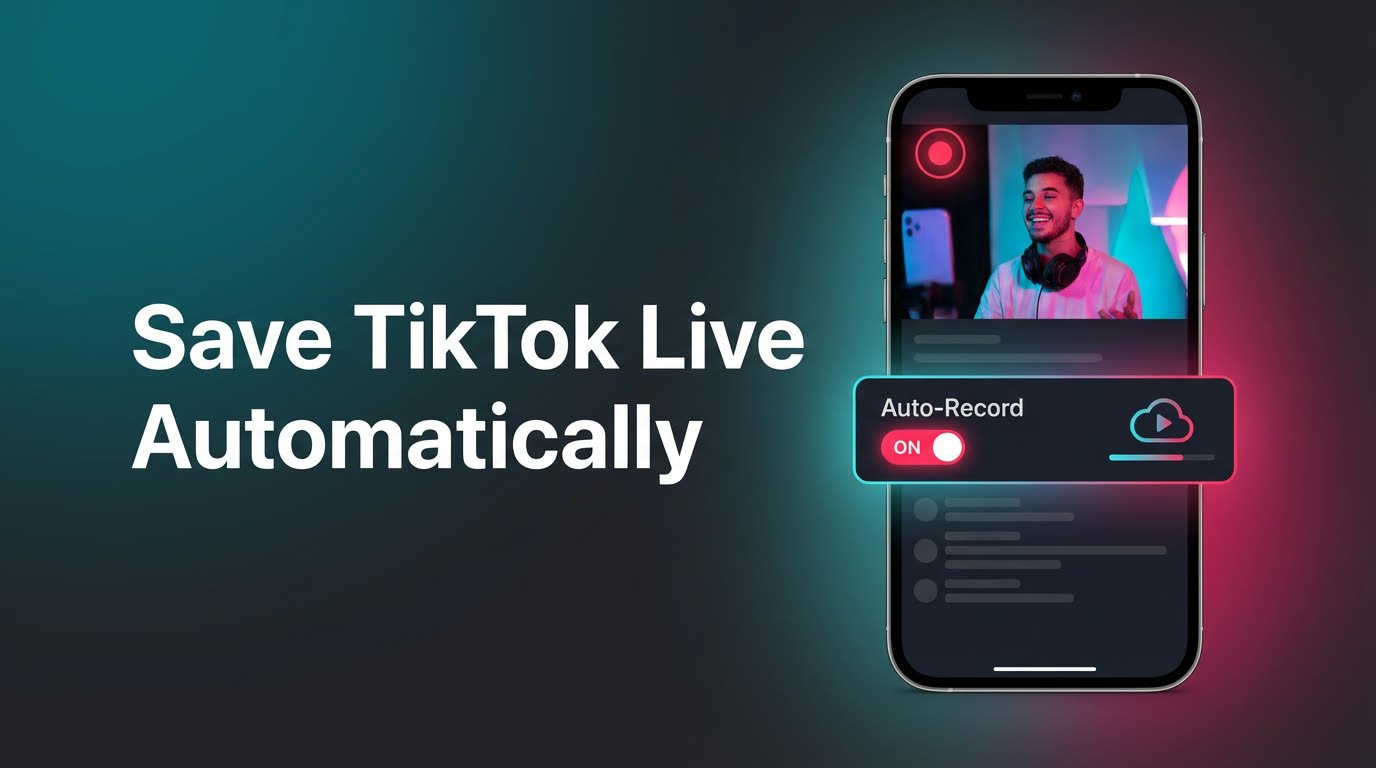
- Toggle auto-record on — for each creator, enable automatic recording. This tells TKREC's cloud servers to start monitoring that creator's live status around the clock.
- Enable push notifications — this ensures you get alerted when a recording completes. Not strictly required, but very useful so you know when new content is available.
- Review your library — after a tracked creator finishes a live, the recording appears in your TKREC library. Open it to stream in-app, or download to your phone for offline access.
Once configured, you don't need to touch TKREC again unless you want to add more creators or review recordings. The entire save process happens automatically in the cloud.
How auto-recording works behind the scenes
Understanding what happens after you press "Auto-Record" helps set expectations:
TKREC's servers continuously check the live status of every creator on your list. When a creator starts a TikTok LIVE broadcast, the server detects it within moments and begins capturing the stream directly. The recording happens on TKREC's infrastructure — your phone is not involved at all. The stream is captured from the first second to the last, at the quality TikTok delivers.
When the live ends, the recording is processed and stored in your personal library. You receive a push notification (if enabled), and the recording is ready to stream or download. The whole process requires zero interaction from you after the initial setup.
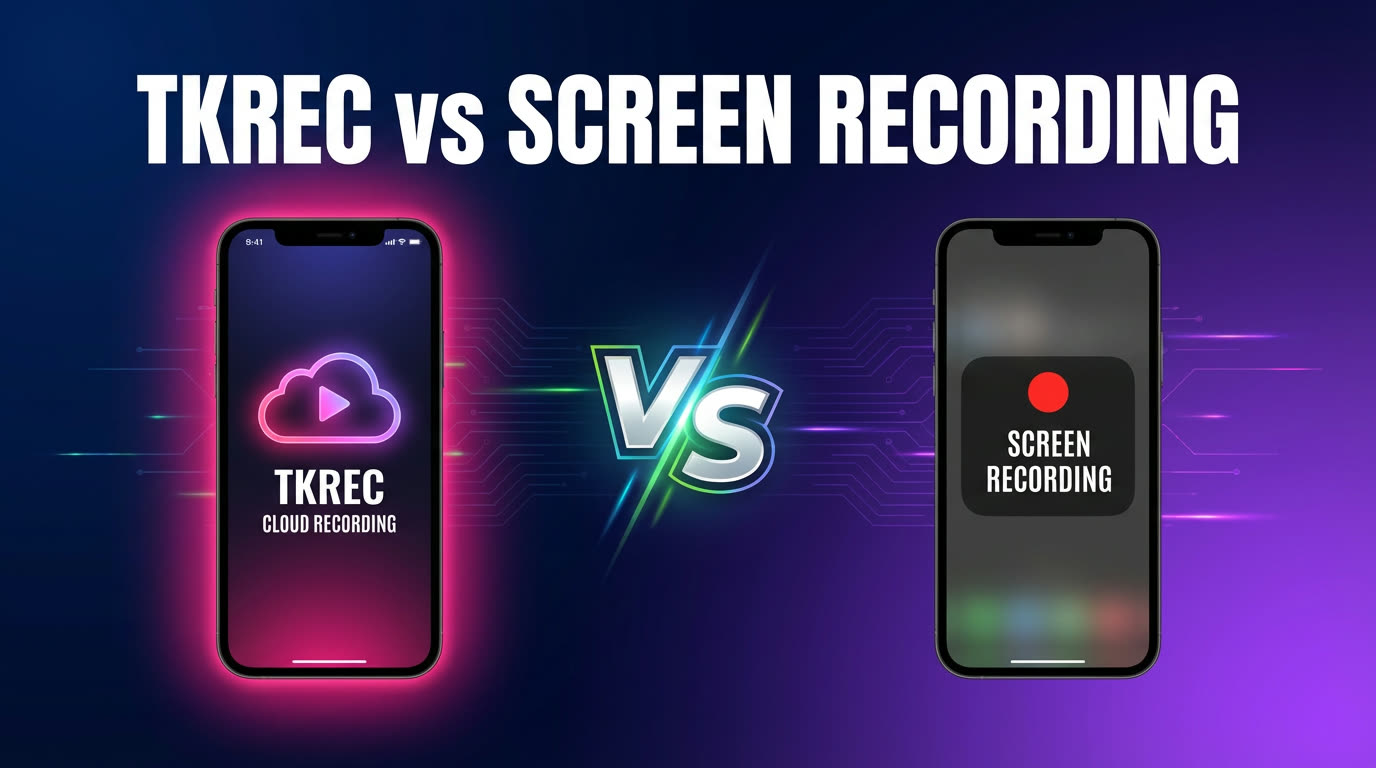
This is fundamentally different from screen recording, where your device does all the work. With TKREC, the heavy lifting happens on remote servers. Your phone can be off, in airplane mode, or across the room — the recording still completes.
Quality and storage tips
A few practical tips to keep your auto-save workflow running smoothly:
- Prioritize creators by importance — start with creators whose content you genuinely want archived. Adding too many at once creates a noisy library where it's hard to find what matters. You can always expand your list later.
- Review weekly and clean unused downloads — if you download recordings to your phone, set a weekly habit to delete files you've already watched. Cloud copies in TKREC remain available regardless, so you're not losing anything permanently.
- Use clear naming when exporting — when you save a video locally, rename it with the creator and date so you can find it easily later. Something like "creator-name-2026-03-15" works well.
- Don't worry about simultaneous streams — if two tracked creators go live at the same time, TKREC records both independently on its servers. You won't miss one because the other is being captured.
For a full walkthrough on getting recordings off the cloud and onto your device, read how to download TikTok live recordings to phone.
Privacy angle
Automatic recording through TKREC is also private recording. Because the capture happens on cloud servers and not through your personal TikTok account, there's no viewer footprint. Your username never appears in the live stream's viewer list, chat, or analytics. The creator has no way to know their stream was recorded by TKREC.
This matters for several scenarios: monitoring a competitor's live content without revealing yourself, watching someone's stream privately, or simply not wanting your viewing habits to be visible. The automatic nature of the recording means you don't even have to open TikTok for it to work — which is as private as it gets. For more, see how to record TikTok live privately with TKREC.
FAQ
Does auto-save work for multiple creators at the same time?
Yes, that's the core design of this workflow. You can add as many TikTok creators as you want, and TKREC monitors all of them independently. If three creators go live at the same time, all three get recorded simultaneously on TKREC's cloud servers. You'll find each recording as a separate entry in your library.
Can I still record manually if I want?
Yes, manual recording is still available. But the main advantage of TKREC is that automation removes the need for manual action in most situations. You won't miss streams that happen at unexpected times, and you won't have to remember to start recording. Manual recording is useful as a fallback for creators you haven't added to auto-record yet.
What if my phone is off when a creator goes live?
The recording still completes. TKREC records on cloud servers, not on your phone. Your device status — on, off, airplane mode, low battery — has no effect on the recording. When you turn your phone back on and open TKREC, the completed recording will be waiting in your library.
How much storage does this use on my phone?
None, unless you choose to download recordings. All recordings are stored in TKREC's cloud by default. You only use phone storage when you explicitly download a recording for offline viewing. If storage is a concern, stream recordings in-app instead of downloading them, or download selectively and delete old files weekly.
Is there a limit to how many lives get auto-saved?
Free tier users have some recording limits. If you need unlimited auto-saves across all your tracked creators, TKREC's premium plan removes those restrictions. For details on what each tier includes, check the app directly or read the best TKREC app for TikTok live in 2026 overview.
Never miss a TikTok LIVE again
TKREC records TikTok live streams automatically — save, rewatch, and download.