How to Record Instagram Live on iPhone (3 Methods)
There are 3 ways to record Instagram Live on iPhone: GREC (automatic cloud recording), the built-in iOS screen recorder, and third-party screen recording apps. Each method has different trade-offs in terms of privacy, quality, effort, and features. This guide breaks down all three so you can choose the best option for your needs.
3 ways to record Instagram Live on iPhone
Here's a quick summary before we dive into each method:
- GREC — Automatic cloud recording. Set it once, it records every future live in HD. Works offline, fully private. Best overall.
- iOS Screen Recording — Built into every iPhone. Manual, captures your screen. Free, no app needed.
- Third-party screen recorders — Apps like Record it!, DU Recorder. Extra features like facecam overlay. Mostly free with ads.
Method 1: GREC — automatic cloud recording (recommended)
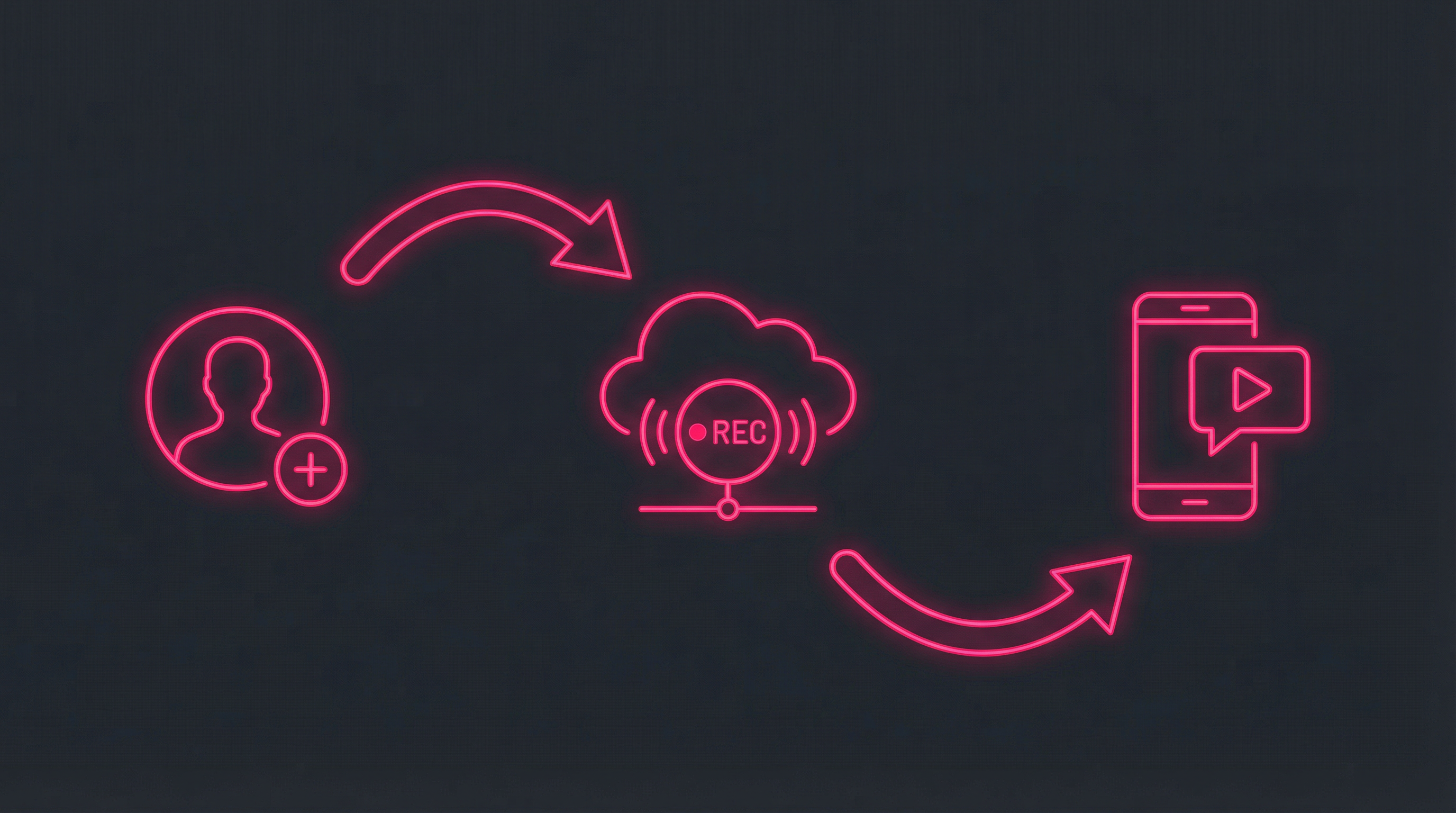
GREC is purpose-built for recording live streams. Unlike screen recorders, it captures the stream directly from the cloud — your iPhone isn't involved in the recording process at all.
How to set up GREC on iPhone:
- Download GREC from the App Store (free, requires iOS 14.0+).
- Create an account — sign up with email, Apple, or Google.
- Search for profiles — type any Instagram username and tap "Add to Auto Rec."
- Done — GREC will automatically record every future live from that profile.
- Watch or download — when a recording is ready, you get a push notification. Watch in-app or download in HD to your Camera Roll.
Why GREC is the best method for iPhone:
- Fully automatic — no need to manually start recording. GREC detects lives and records them for you.
- 100% private — your username never appears in the streamer's viewer list.
- Works with your phone off — recording happens in the cloud. Your iPhone can be locked, in airplane mode, or even dead.
- Full-length capture — records from the very first second to the last. No missed beginnings.
- HD quality — often better quality than a screen recording.
- Multiple streams at once — record unlimited simultaneous lives.
- No battery drain — your iPhone isn't doing the heavy lifting.
- Past live history — browse and unlock previously recorded streams.
Pricing: Free tier available. GREC Premium starts at $4.99/week.
Method 2: iOS built-in screen recording
Every iPhone running iOS 14 or later has a built-in screen recorder. It's the quickest free option if you're already watching a live and want to capture it right now.
How to screen record Instagram Live on iPhone:
- Add Screen Recording to Control Center — Go to Settings > Control Center > tap the + next to "Screen Recording" (if not already added).
- Open Instagram and join the live stream you want to record.
- Open Control Center — swipe down from the top-right corner (iPhone X and later) or swipe up from the bottom (iPhone 8 and earlier).
- Long-press the record button — tap the microphone icon to capture audio, then tap "Start Recording."
- A 3-second countdown begins — switch back to Instagram. The red status bar indicates recording is active.
- Stop recording — tap the red status bar at the top and confirm, or open Control Center and tap the record button again.
- Video saves to Photos — find it in your Camera Roll.
Pros:
- Free and built into every iPhone
- No app installation needed
- Captures both video and audio
- Simple to use
Cons:
- You must be watching — you need to have the live open on screen the entire time
- Your name appears — you're in the streamer's viewer list
- You'll miss the start — by the time you notice someone is live and start recording, you've already missed the beginning
- Notifications are captured — incoming calls, texts, and app notifications show up in the recording
- Battery drain — screen recording while streaming uses significant battery
- Can only record one stream — if two people go live at the same time, you choose one
- No Do Not Disturb auto-toggle — you need to manually enable DND to avoid notification pop-ups
Pro tip: Before starting your screen recording, enable Do Not Disturb (Focus mode) to prevent notifications from appearing in your recording.
Method 3: Third-party screen recorders
Several third-party apps on the App Store add features on top of iOS's built-in screen recording. These can be useful if you want extras like a facecam overlay or built-in editing.
Popular options:
- Record it! — Free screen recorder with facecam overlay and basic editing. Popular for reaction-style recordings.
- DU Recorder — Screen recording + live streaming. Includes video editor and supports custom resolution.
- Go Record — Clean interface, supports facecam, offers a video editor with filters.
Pros:
- Facecam overlay for reaction recordings
- Built-in video editing tools
- Custom resolution and frame rate settings
Cons:
- All the same limitations as iOS screen recording (must be watching, viewer list, miss the start, battery drain)
- Most have ads in the free version
- Some require a subscription for HD export or watermark removal
- Added complexity for a minor feature upgrade over the built-in recorder
Quick comparison
| Feature | GREC | iOS Screen Rec | 3rd Party Apps |
|---|---|---|---|
| Automatic recording | ✓ | ✗ | ✗ |
| Records from start | ✓ | ✗ | ✗ |
| Private / stealth | ✓ | ✗ | ✗ |
| Works offline | ✓ | ✗ | ✗ |
| HD quality | ✓ | ✓ | ✓ |
| Multi-stream | ✓ | ✗ | ✗ |
| No battery drain | ✓ | ✗ | ✗ |
| Free option | ✓ | ✓ | ✓ |
| Facecam overlay | ✗ | ✗ | ✓ |
Frequently asked questions
Does Instagram notify when you screen record a Live on iPhone?
No. Instagram does not send any notification when you use screen recording on a live stream. However, your username still appears in the streamer's viewer list. GREC avoids this entirely since recording happens in the cloud.
Can I record Instagram Live on iPhone without being in the viewer list?
Yes — but only with GREC. GREC records from the cloud without joining the live as you, so your username never shows up. Screen recording methods require you to be actively watching.
What iOS version do I need for screen recording?
Screen Recording is available on iOS 11 and later. GREC requires iOS 14.0 or later.
Can I record audio during iOS screen recording?
Yes. Long-press the Screen Recording button in Control Center and enable the microphone to capture both stream audio and external audio.
Does screen recording affect iPhone performance?
Yes. Screen recording while streaming video uses significant CPU, GPU, and battery. Expect your iPhone to get warm and battery to drain faster. GREC has zero impact on device performance since recording happens in the cloud.
Record Instagram Lives on iPhone — the easy way
GREC records automatically in the cloud. No screen recording, no battery drain, no viewer footprint.