How to Record TikTok Live Streams (4 Methods That Work in 2026)
TikTok doesn't save other people's Lives for you. Once a LIVE ends, it's gone — unless you recorded it. Most screen recording methods fail in a subtle way: they require your phone to be on and the stream playing the entire time, which means you can miss a live if you're asleep, at work, or your battery dies.
We've helped 300,000+ users solve this across iOS and Android. Here are the 4 methods that work in 2026, ranked from most to least reliable for long-term use.
See also: does TikTok notify when you screen record? and can you rewatch TikTok Lives you missed?
4 ways to record TikTok LIVE streams
TikTok doesn't offer a built-in way to save someone else's live stream. Once a TikTok LIVE ends, it's gone — unless the creator specifically saves and shares it. That means if you want a copy, you need to record it yourself.
Here are your options:
- GREC — Automatic cloud recording. Records every TikTok LIVE in HD without touching your phone. Best overall.
- Built-in screen recording — Available on iOS 14+ and Android 11+. Free, manual, captures your entire screen.
- OBS Studio — Free desktop software. Great for high-quality captures, but requires a computer and manual setup.
- Third-party apps — XRecorder, AZ Recorder, Record it!, etc. Extra features, but same screen recording limitations.
Method 1: GREC — automatic cloud recording (recommended)
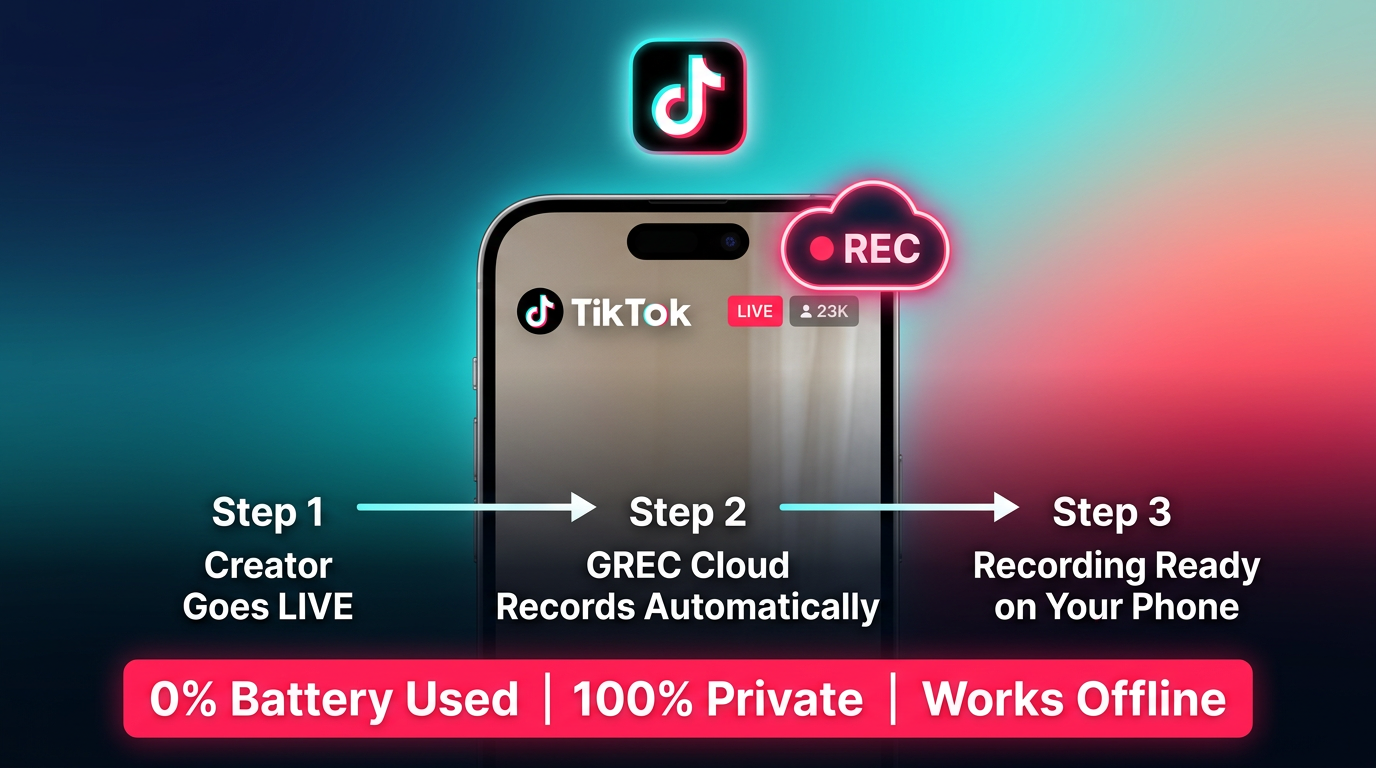
GREC is the only app that records TikTok LIVE streams automatically from the cloud. It doesn't screen record — it captures the live stream directly on GREC's servers, completely independent of your phone or computer.
How to set up GREC for TikTok LIVE recording:
- Download GREC from the App Store or Google Play.
- Create an account — sign up with email, Google, or Apple.
- Search for TikTok profiles — type any TikTok username and tap "Add to Auto Rec."
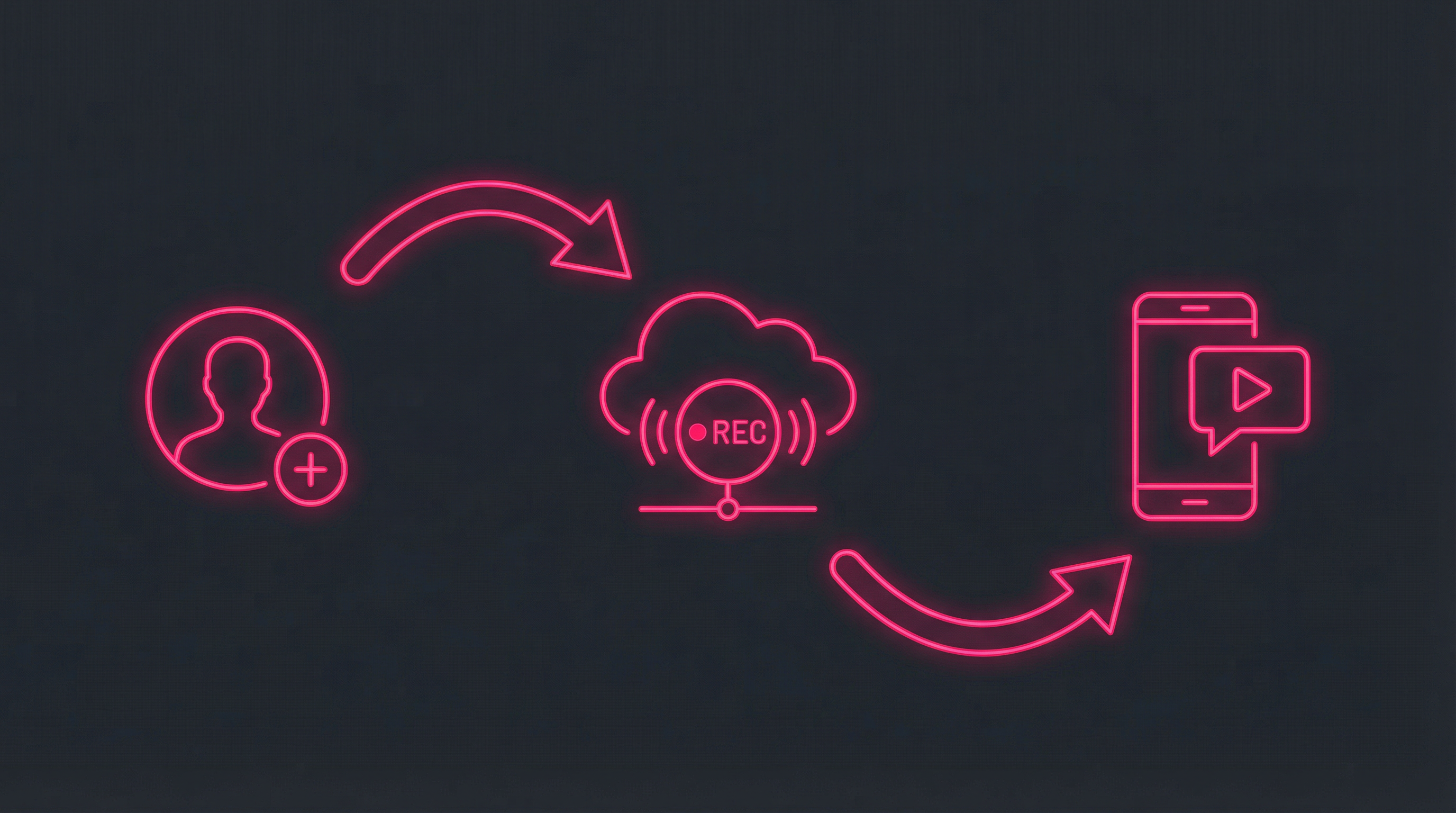
- Done — GREC monitors that profile 24/7. When they go live, recording starts automatically in the cloud.
- Watch or download — you'll get a push notification when the recording is ready. Stream in-app or download in HD.
Why GREC is the best method for TikTok LIVE:
- Fully automatic — no need to be online, no need to start anything manually. GREC detects lives and records them.
- 100% private — your username never appears in the creator's viewer list.
- Works with your phone off — recording happens in the cloud. Phone off, Wi-Fi off, airplane mode — doesn't matter.
- Full-length capture — records from the very first second to the last. No missed beginnings.
- HD quality — captures the actual stream, often better quality than a screen recording.
- Multiple streams at once — record unlimited simultaneous TikTok LIVEs.
- Zero battery drain — your device isn't involved in the recording.
- Cross-platform — works for TikTok, Instagram Live, and other platforms from a single app.
Pricing: Free tier available. GREC Premium starts at $4.99/week and includes unlimited auto-recording across all platforms.
Screen recording works for occasional, planned captures. But if you follow multiple TikTok creators who go live at unpredictable times — or if you're ever asleep or away from your phone when they broadcast — only cloud-based auto-recording actually keeps up. Methods 2–4 all require you to be present and watching.
Method 2: Built-in screen recording (iOS & Android)
Both iPhone and Android have built-in screen recorders that can capture anything on your display, including TikTok LIVE streams.
On iPhone (iOS 14+)
- Add "Screen Recording" to Control Center (Settings > Control Center).
- Open TikTok and join the live stream.
- Swipe down from the top-right corner to open Control Center.
- Long-press the record button, enable the microphone, and tap "Start Recording."
- Switch back to TikTok. A red status bar indicates recording is active.
- When done, tap the red bar and confirm to stop. Video saves to Photos.
On Android (11+)
- Swipe down twice to open Quick Settings. Look for "Screen Record" (add it via the edit/pencil icon if missing).
- Open TikTok and join the live stream.
- Tap "Screen Record" in Quick Settings. Choose audio source (media audio recommended).
- Switch back to TikTok. A recording indicator appears in the status bar.
- When done, pull down the notification shade and tap "Stop." Video saves to your gallery.
Pros:
- Free and built into the OS
- No app installation needed
- Captures video + audio
Cons:
- Must be watching — the live must be playing on your screen the entire time
- Your name appears — you're in the creator's viewer list
- You miss the start — by the time you notice the live and start recording, the beginning is already gone
- Notifications appear in recording — texts, calls, and alerts get captured
- Battery drain + phone heats up — screen recording while streaming is resource-intensive
- Only one stream at a time — can't capture two lives simultaneously
- Lower quality — you're recording a compressed screen output, not the original stream
Pro tip: Turn on Do Not Disturb (Focus mode on iPhone) before recording to prevent notifications from cluttering your capture.
Method 3: OBS Studio (desktop)
OBS Studio is a free, open-source tool for recording and streaming. If you're already at a computer, it can capture TikTok LIVE at high quality from your browser.
How to record TikTok LIVE with OBS:
- Install OBS Studio — download from obsproject.com (Windows, macOS, Linux).
- Open TikTok in your browser — go to tiktok.com and find the live stream. TikTok LIVEs are viewable on the web.
- In OBS, add a "Window Capture" source — select your browser window showing the TikTok LIVE.
- Configure audio — add an "Audio Output Capture" source to record the stream's audio.
- Set output format — go to Settings > Output. Choose MKV or MP4, set your preferred resolution and bitrate.
- Click "Start Recording" — OBS captures the browser window.
- Click "Stop Recording" when the live ends. File saves to your designated folder.
Pros:
- Free and open-source
- High-quality output (custom resolution, bitrate, frame rate)
- Supports multiple audio sources
- Can record + stream simultaneously
- Works on Windows, macOS, and Linux
Cons:
- Requires a computer — not a mobile solution
- Manual setup and start — you must be present and click "Start Recording" before the live begins
- Still requires watching — the TikTok LIVE must be playing in your browser
- You're in the viewer list — the creator knows you're watching
- Learning curve — OBS has many settings that can be overwhelming for beginners
- Misses the start — if you don't notice the live in time, the beginning is lost
Method 4: Third-party screen recorder apps
Third-party screen recording apps add features beyond what the built-in recorder offers, like facecam overlay, editing tools, and custom settings.
Popular options
- XRecorder (Android) — No watermark, 1080p, floating control bubble, built-in editor. Free.
- AZ Screen Recorder (Android) — No time limit, supports external audio, video trimming. Free with ads.
- Mobizen (Android) — Facecam overlay, Samsung-optimized, up to 1080p/60fps.
- Record it! (iOS) — Facecam overlay, basic editing, reaction-style recordings.
- DU Recorder (iOS/Android) — Screen recording + live streaming + built-in editor.
Pros:
- Facecam overlay for reactions
- Built-in editing tools
- Custom resolution/frame rate
- Works on older OS versions that lack built-in screen recording
Cons:
- Same fundamental limitations as screen recording (must be watching, viewer list, miss the start)
- Most have ads
- Some add watermarks unless you pay
- Battery drain and storage usage
Quick comparison table
| Feature | GREC | Screen Rec | OBS | 3rd Party |
|---|---|---|---|---|
| Automatic recording | ✓ | ✗ | ✗ | ✗ |
| Records from first second | ✓ | ✗ | ✗ | ✗ |
| Private / stealth | ✓ | ✗ | ✗ | ✗ |
| Works offline / phone off | ✓ | ✗ | ✗ | ✗ |
| HD quality | ✓ | ✓ | ✓ | ✓ |
| Multiple streams at once | ✓ | ✗ | ✗ | ✗ |
| Zero battery/CPU usage | ✓ | ✗ | ✗ | ✗ |
| Mobile (no computer) | ✓ | ✓ | ✗ | ✓ |
| Free option | ✓ | ✓ | ✓ | ✓ |
| Facecam overlay | ✗ | ✗ | ✓ | ✓ |
Can TikTok detect screen recording?
No. As of 2026, TikTok does not detect or notify creators when someone screen records their live stream. There is no technical mechanism in TikTok that alerts streamers to screen recording.
However, there are two important caveats:
- Viewer list: If you're watching a TikTok LIVE to screen record it, your username appears in the viewer list. The creator can see you're watching, even though they can't tell you're recording.
- Future changes: TikTok could add detection features in the future (similar to how Snapchat detects screenshots). GREC's cloud recording would remain undetectable since it doesn't interact with the TikTok app at all.
If privacy matters to you, GREC is the only method that keeps you completely invisible — your account never joins the live, and there's no on-device activity for TikTok to detect.
Frequently asked questions
Can you save someone else's TikTok LIVE after it ends?
Only if the creator saves it as a replay and keeps it on their profile. Most creators don't. Once a TikTok LIVE ends without a replay, it's gone permanently — unless you recorded it. GREC auto-records from the start, so you never have to worry about this. It's also the easiest way to rewatch TikTok Live streams on demand — every recording stays in your personal library indefinitely.
What is an auto TikTok Live recorder?
An auto TikTok Live recorder is an app that detects when a creator goes live and starts recording without any manual action. GREC is the leading auto TikTok Live recorder — it monitors profiles 24/7 and captures every TikTok LIVE in the cloud. The full recording is waiting in your library whenever you're ready, regardless of when the live happened or whether your phone was on.
Is it legal to record TikTok LIVE streams?
Recording TikTok LIVE for personal use is generally legal in most countries. However, redistributing, reposting, or monetizing someone else's content without permission may violate copyright and TikTok's terms of service. Always respect creators' content.
Does GREC work with TikTok and Instagram?
Yes. GREC supports multiple platforms from a single app. You can auto-record TikTok LIVE, Instagram Live, and other supported live stream platforms — all with the same account and subscription.
Can I record TikTok LIVE on PC without OBS?
Yes. On Windows 10/11, press Win+G to open the Xbox Game Bar, which includes a built-in screen recorder. On macOS, press Cmd+Shift+5 for the built-in screen recording tool. Both work to capture TikTok LIVE from your browser. However, GREC requires zero computer setup and works automatically.
Why does my TikTok LIVE screen recording have no audio?
On iOS, you need to explicitly enable the microphone before starting screen recording (long-press the record button and tap the microphone icon). On some Android devices, you need to select "Media audio" or "System audio" as the audio source. GREC always captures the original stream audio automatically.
Can I record a TikTok LIVE that I'm hosting?
Yes. TikTok allows creators to save their own LIVE replays directly in the app. Go to your LIVE settings and enable "Save LIVE Replay." You can also use screen recording or GREC as a backup to ensure nothing is lost.
Never miss a TikTok LIVE again
GREC is the only auto TikTok Live recorder that works hands-free in the cloud — even when your phone is off. Set it once, never miss a stream.