How to Record TikTok Live on iPhone (3 Methods That Work in 2026)
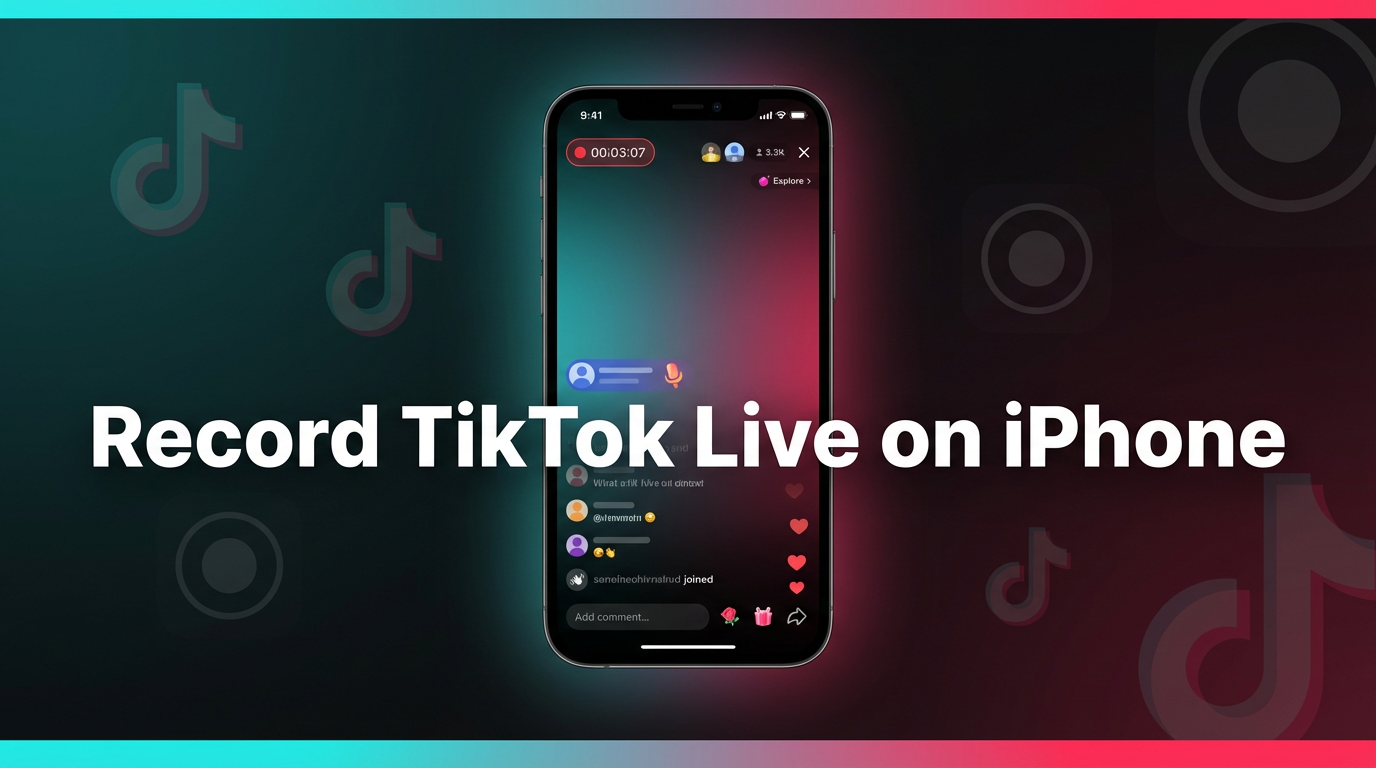
TikTok doesn't let you save someone else's live stream. There's no download button, no replay archive, and no built-in recording feature for viewers. Once a live ends, it's gone — unless you recorded it yourself. Here are three methods that actually work on iPhone in 2026, with step-by-step instructions for each.
3 ways to record TikTok live on iPhone
There's no single "right" way to capture a TikTok live on iPhone. Each method has different trade-offs around automation, privacy, and quality. Here's a quick rundown before we get into the details:
- GREC (cloud recording) — fully automatic, records in the cloud without touching your phone. Best for people who don't want to babysit a recording session.
- iPhone screen recording — free and built into iOS. Good for one-off recordings when you're already watching, but completely manual.
- Third-party apps — screen recorder apps with extra features like editing and face cam overlays. More flexible than the built-in option, but still manual.
Let's walk through each one.
Method 1: GREC — automatic cloud recording (recommended)
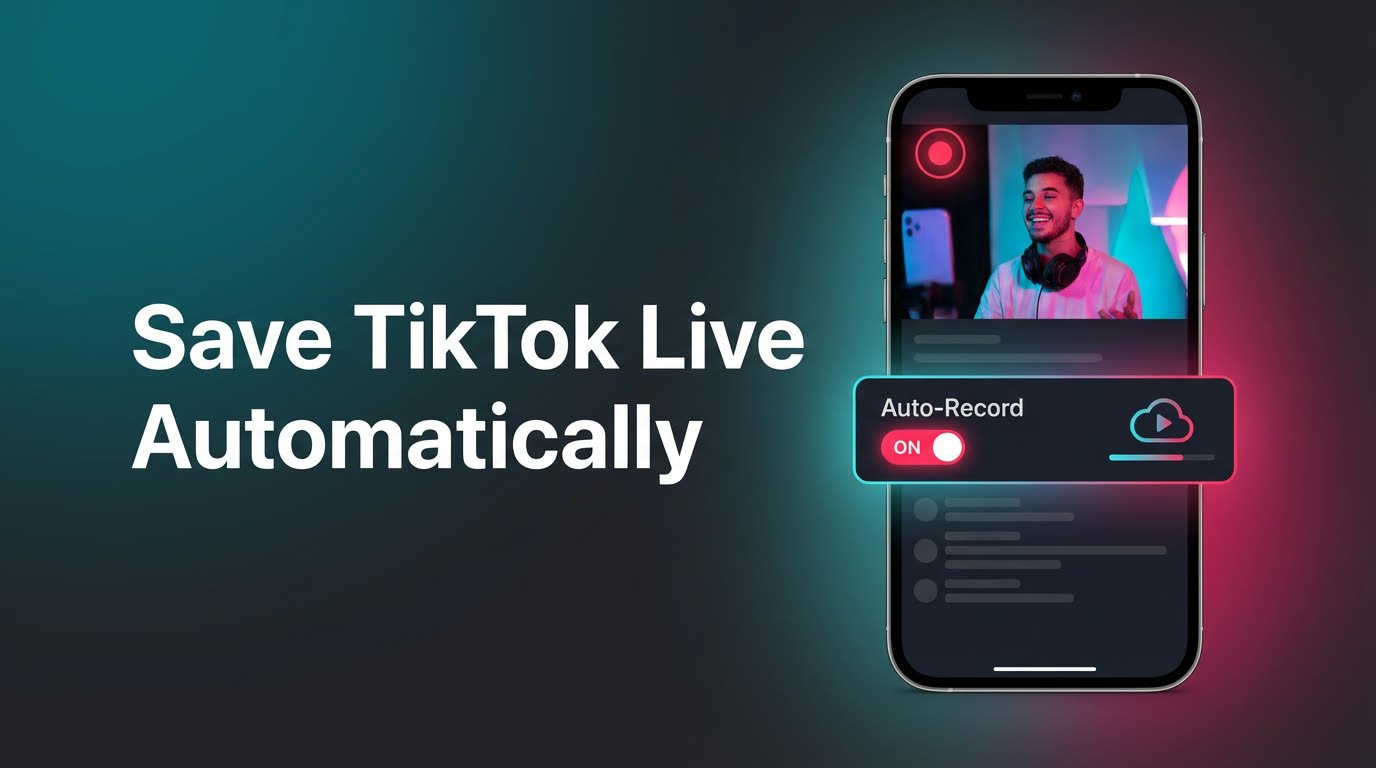
GREC is a cloud-based live stream recorder that captures TikTok live streams on remote servers — completely independent of your iPhone. It doesn't use screen recording. It grabs the actual stream feed directly, which means better quality and zero effort on your end once it's set up.
How to set it up:
- Download GREC from the App Store (also available on Google Play).
- Create an account — sign up with email, Google, or Apple.
- Search for TikTok creators you want to record.
- Tap "Add to Auto Rec" on each creator's profile.
- That's it. When any of those creators go live, GREC starts recording automatically in the cloud. You'll get a push notification when the recording is ready.
Why this is the best option for most people:
- Fully automatic — you don't need to be watching TikTok or even have your phone nearby. GREC monitors your creators 24/7 and records the moment they go live.
- Private viewing — cloud-based recording leaves no viewer footprint. You won't show up in the creator's live viewer list, and there's no public trace that you watched.
- Works with your iPhone off — recording happens on GREC's servers. Phone powered down, in airplane mode, out of battery — doesn't matter.
- HD quality — GREC captures the original stream feed, not a screen-compressed version of what's on your display.
- No storage drain — recordings are stored in the cloud. Your iPhone's storage stays untouched until you decide to download something.
- Multiple creators at once — track dozens of TikTok creators simultaneously. If three go live at the same time, GREC records all three.
Pricing: Free tier available. GREC Premium starts at $4.99/week for unlimited auto-recording across TikTok, Instagram, X/Twitter, Twitch, Kick, and more. Over 300,000 users with a 4.9/5 rating.
Method 2: iPhone screen recording (iOS 14+)
Every iPhone running iOS 14 or later has a built-in screen recorder. It captures everything on your display — including a TikTok live stream playing in the app. Here's exactly how to use it:
Step 1: Add Screen Recording to Control Center
Open Settings → Control Center and tap the green + button next to Screen Recording. If it's already listed under "Included Controls," you're good to go.
Step 2: Open the TikTok live
Launch TikTok and navigate to the live stream you want to record. Make sure the stream is playing and the audio is on.
Step 3: Swipe down to open Control Center
On iPhone X and later (with Face ID), swipe down from the top-right corner. On older iPhones with a Home button, swipe up from the bottom edge.
Step 4: Long-press the Record button
Don't just tap it — long-press the screen recording icon (the circle inside a circle). This opens the extended options where you can toggle the microphone.
Step 5: Toggle the microphone
If you want to capture the TikTok live audio (you probably do), make sure the microphone is set to On. Tap the microphone icon at the bottom of the popup to toggle it.
Step 6: Tap "Start Recording"
You'll see a 3-second countdown. Switch back to TikTok before it finishes. The red status bar (or red pill on Dynamic Island iPhones) at the top of your screen confirms recording is active.
Step 7: Stop when the live ends
Tap the red status bar at the top and confirm "Stop." Or open Control Center again and tap the recording button. The video saves to your Photos app automatically.
Pros:
- Completely free — built into every modern iPhone
- No extra app downloads needed
- Captures both video and audio
Cons:
- Completely manual — you have to notice the creator is live, open TikTok, and start the recording yourself. If you're asleep or busy, you miss it.
- Phone must stay on — TikTok has to remain open on your screen for the entire broadcast. Lock your phone and the recording continues, but close TikTok and you lose the stream audio.
- You're visible in the viewer list — the creator and other viewers can see that you're watching. There's no way around this with screen recording.
- Notifications get captured — texts, calls, and banner notifications all appear in the recording. Enable Do Not Disturb before you start.
- Battery drain — screen recording while streaming video eats through battery fast. A 2-hour live can drain 40–60% depending on your iPhone model.
- One stream at a time — you can't record two TikTok live streams simultaneously with screen recording.
Method 3: Third-party recorder apps
Several third-party screen recording apps on the App Store offer features beyond what iOS's built-in recorder provides. Here are three worth considering:
Record it! Screen Recorder
A popular free option that adds a face cam overlay and basic video editing. You can trim recordings, add reactions, and export directly to your camera roll. The free version includes a watermark — the paid upgrade ($4.99 one-time) removes it.
DU Recorder
Offers screen recording with live streaming capability (useful if you want to re-stream to another platform). Includes built-in editing tools and supports custom resolution and frame rate. Free with in-app purchases.
TechSmith Capture
From the makers of Camtasia and Snagit. Straightforward screen recording with easy sharing to TechSmith's cloud storage. Good if you already use their desktop tools and want recordings synced across devices.
All three work the same way as iOS screen recording — you start them before or during a TikTok live, and they capture whatever's on your screen. The main advantages over the built-in recorder are editing features, face cam overlays, and custom export settings.
The downsides are identical to Method 2: manual start, phone must stay on, you're visible in the viewer list, and you can only record one stream at a time.
Comparison table
| GREC | iOS Screen Recording | Third-party apps | |
|---|---|---|---|
| Automatic recording | ✓ | ✗ | ✗ |
| Works with phone off | ✓ | ✗ | ✗ |
| No viewer footprint | ✓ | ✗ | ✗ |
| HD quality | ✓ | Depends on display | Depends on display |
| Multiple streams at once | ✓ | ✗ | ✗ |
| No iPhone storage used | ✓ | ✗ | ✗ |
| Video editing built in | ✗ | Basic trim | ✓ |
| Price | Free + $4.99/wk | Free | Free–$4.99 |
If you just need to grab one live stream that's happening right now and you're already watching it, iOS screen recording is fine. If you want to capture lives automatically — especially from creators who go live at unpredictable times — GREC is the way to go.
Privacy and viewer footprint
This is the part most people overlook. When you screen record a TikTok live, you have to actually watch it. That means you show up in the creator's viewer list. The host sees your username. Other viewers see you're there. If you're trying to keep your viewing habits private, screen recording doesn't help.
GREC's cloud-based recording changes that entirely. Since the recording happens on remote servers, your TikTok account never joins the live stream. There's no viewer footprint — your name doesn't appear in the audience list, the creator gets no notification, and there's no public trace that you tuned in.
For anyone who follows creators for research, competitive analysis, or just personal interest without wanting to broadcast it, cloud recording is a meaningful privacy upgrade over screen recording.
Frequently asked questions
Does TikTok notify the creator when I screen record their live?
No. TikTok doesn't send notifications when someone screen records a live stream. However, your username is still visible in the live viewer list while you're watching — so the creator can see you're there, even if they don't know you're recording.
Can I record a TikTok live that's already started?
With screen recording, yes — you'll capture everything from the moment you start the recorder. With GREC, if you've already added the creator to auto-recording, GREC captures the live from the very first second. If you add them mid-stream, GREC picks up from that point forward.
Why does my screen recording have no audio?
The most common reason: the microphone wasn't toggled on. Long-press the screen recording button in Control Center and make sure the microphone icon is highlighted (red). If you just tap the button without long-pressing, the mic defaults to off and you'll get a silent video.
Is it legal to record someone's TikTok live?
Recording publicly available live content for personal use is generally fine. Redistribution, commercial use, or re-uploading someone else's live content may violate TikTok's terms of service and copyright law. Use recordings responsibly and respect creators' rights.
How much iPhone storage does a screen recording use?
Roughly 200–400 MB per hour, depending on your iPhone model and screen resolution. A 2-hour live could take up close to 1 GB. GREC recordings are stored in the cloud, so they don't use any iPhone storage unless you download them.
Record TikTok lives on iPhone — automatically
GREC captures TikTok live streams in the cloud, even with your iPhone off. Try it free.