Best Live Stream Recorder Apps (2026 Comparison)
There's no shortage of apps that claim to record live streams, but most of them are just screen recorders with a fresh coat of paint. We tested six popular options across iOS, Android, and desktop to find out which ones actually deliver — and which ones waste your time.
If you've ever missed a live stream because you were asleep, at work, or just forgot — or if you've tried to screen record a two-hour stream only to have your phone overheat and kill the recording at minute forty — this comparison is for you.
Here's how the top live stream recorder apps stack up in 2026.
What to look for in a live stream recorder
Before diving into individual apps, here's what actually matters when picking a live stream recorder:
- Automatic vs. manual — Do you have to press "record" before every stream, or does the app handle it? If you follow creators who go live at random times, manual recording is basically useless.
- Cloud vs. local — Cloud recording happens on remote servers, independent of your device. Local recording ties up your phone or computer for the entire stream. Big difference for battery, storage, and reliability.
- Platform coverage — Does it work with just one platform or many? If you follow creators across TikTok, Instagram, Twitch, and YouTube, using separate tools for each gets old fast.
- Recording quality — Screen recorders capture a compressed version of the stream at your screen's resolution. Cloud recorders can grab the original feed directly, often at higher quality.
- Private viewing — Screen recording requires you to watch the stream live, which means your username shows up in the viewer list. Cloud-based recording leaves no public trace.
- Battery and storage impact — A two-hour screen recording will drain your battery and eat several gigabytes of local storage. Cloud recorders offload both.
- Price — Free tiers matter, but so does what you actually get. A "free" app with watermarks and 5-minute limits isn't really free.
With those criteria in mind, let's look at each option.
App #1: GREC — best overall
Type: Cloud-based automatic recorder
Platforms supported: TikTok, Instagram, Twitch, Kick, X/Twitter, YouTube, Facebook, and more (10+)
Available on: iOS & Android
Price: Free tier available. Premium from $4.99/week.
Users: 300,000+ | Rating: 4.9/5
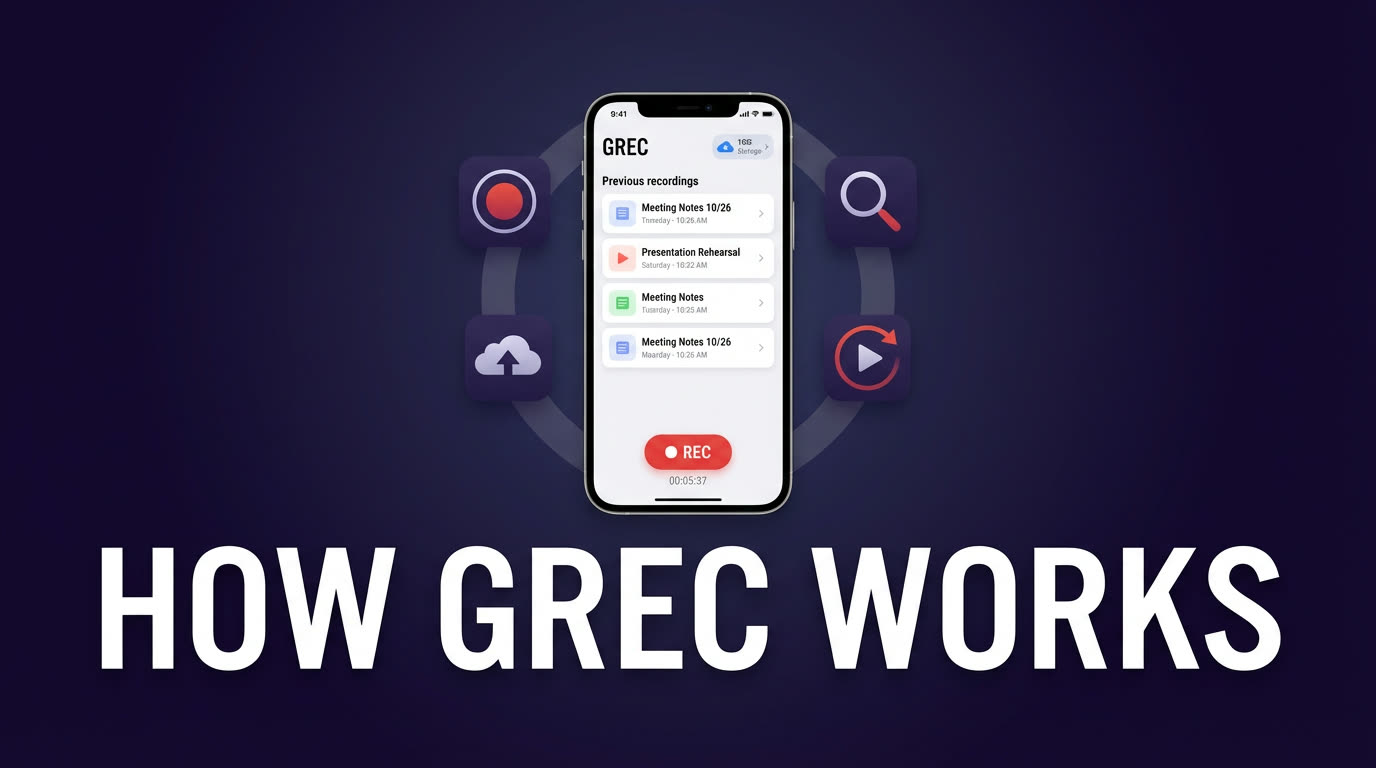
GREC is a different animal from everything else on this list. It's not a screen recorder — it's a cloud-based service that monitors live stream platforms 24/7 and records streams automatically on remote servers. You add the channels you care about, and GREC handles the rest. Phone off, Wi-Fi off, middle of the night — doesn't matter.
What makes it stand out:
- Fully automatic — add a channel once, and every future live stream gets recorded without you lifting a finger.
- Captures from the first second — no missed intros. GREC detects the stream going live and starts recording immediately.
- Private viewing — since recording happens in the cloud, your username never appears in any viewer list or chat. No viewer footprint whatsoever.
- Works with your phone off — recording is server-side. Your device isn't involved at all.
- HD quality — captures the original stream feed rather than a screen-compressed version.
- 10+ platforms from one app — TikTok, Instagram, Twitch, Kick, YouTube, X/Twitter, Facebook, and others. One subscription covers all of them.
- Multiple simultaneous recordings — if three creators go live at the same time, GREC records all three.
Where it falls short:
- Premium subscription required for unlimited auto-recording (free tier has limits).
- No built-in video editing — you'll need another app for trimming or effects.
- Requires an internet connection to watch or download recordings (they live in the cloud).
Best for: Anyone who follows multiple creators across platforms and wants recordings handled automatically without touching their device. The private viewing aspect is a big deal for people who want to save streams without showing up as a viewer.
App #2: Built-in screen recording (iOS & Android)
Type: Local screen capture
Platforms supported: Anything on your screen
Available on: iOS 14+ / Android 11+
Price: Free
Both iPhone and Android have built-in screen recorders. On iPhone, it's in Control Center. On most Android phones (Samsung, Pixel, etc.), it's in Quick Settings. No app to install, no account to create — just tap and go.
Pros:
- Already on your device — zero setup.
- Completely free with no watermarks or limits.
- Records any app, not just specific platforms.
- Internal audio capture works on both iOS and most modern Android devices.
Cons:
- 100% manual — you must start recording before the stream and stop it after.
- Your phone has to stay on with the stream playing the entire time. Lock the screen? Recording stops.
- Battery drain is severe during long streams. A 2-hour recording can take your battery from full to under 20%.
- Eats local storage fast — expect 3–6 GB per hour of HD recording.
- Captures notifications, calls, and anything else that pops up on screen.
- Your username is visible in the streamer's viewer list the entire time.
- Can't record if you're asleep, at work, or your phone dies mid-stream.
Best for: Quick, occasional recordings where you're already watching the stream and don't want to install anything. Not practical for regular use or long streams.
App #3: OBS Studio
Type: Desktop local recorder / streaming software
Platforms supported: Anything on your screen + direct stream capture via URL
Available on: Windows, macOS, Linux
Price: Free (open source)
OBS Studio is the gold standard for streamers and desktop recording. It's insanely powerful, completely free, and open source. But it's a desktop application — no mobile version exists.
Pros:
- Best recording quality you can get. Full control over resolution, bitrate, encoding.
- Can capture streams via browser source, window capture, or direct stream URLs.
- Completely free. No premium tier, no watermarks, no limits.
- Extensible with plugins (auto scene switching, stream deck integration, etc.).
- Can record multiple sources/scenes simultaneously.
Cons:
- Desktop only — requires a computer running the entire time.
- Manual start and stop. No automatic detection when a stream goes live.
- Steep learning curve. The interface is designed for power users, not casual viewers.
- Uses significant CPU/GPU resources during recording.
- If you're capturing via browser, you still show up as a viewer on the platform.
- Computer must stay awake and connected for the full duration.
Best for: Desktop users who want maximum quality and control, especially if they already use OBS for their own streaming. Overkill for someone who just wants to save a TikTok Live from their phone.
App #4: XRecorder
Type: Mobile screen recorder
Platforms supported: Anything on your screen
Available on: Android (iOS version limited)
Price: Free with ads. Pro removes ads.
XRecorder by InShot is one of the most downloaded screen recorders on Android. It adds a floating control bubble on your screen so you can start/stop recording with a single tap, plus basic video editing after capture.
Pros:
- Clean interface with floating controls — easy to start mid-stream.
- No watermark on free recordings (a rarity for free screen recorders).
- Records internal audio on Android 10+.
- Built-in trimmer and basic editor for post-capture cleanup.
- Adjustable resolution and frame rate settings.
Cons:
- Still a screen recorder — manual start, phone must stay on, battery drain applies.
- Ads in the free version can be intrusive.
- Android-focused. The iOS version is stripped down.
- No cloud backup — recordings live on your device only.
- Captures everything on screen, including any notifications.
- No automation whatsoever — can't detect live streams or schedule recordings.
Best for: Android users who want a slightly nicer screen recording experience than the built-in option, especially if they want to trim clips right after recording.
App #5: AZ Screen Recorder
Type: Mobile screen recorder
Platforms supported: Anything on your screen
Available on: Android (iOS available but limited)
Price: Free with ads. Premium removes ads, adds features.
AZ Screen Recorder has been around since Android's early screen recording days, and it's matured into a solid option. It supports live streaming (ironically), has a decent editor, and can overlay a front-camera feed for reaction recordings.
Pros:
- No time limit on recordings.
- Facecam overlay — useful if you want to record your reaction while watching a stream.
- No watermark on free version.
- Built-in GIF maker, video editor, and screenshot tool.
- Can stream to platforms directly (if you also want to broadcast).
Cons:
- Same screen recording limitations — manual, battery-draining, storage-hungry.
- Premium features locked behind a subscription.
- Android-centric. iOS version is an afterthought.
- The interface is getting cluttered with features most people don't need.
- Still shows you as a viewer on whatever platform you're recording from.
Best for: Users who want reaction recording with a facecam overlay, or who want a screen recorder that doubles as a mini video editor.
App #6: Record it!
Type: Mobile screen recorder
Platforms supported: Anything on your screen
Available on: iOS (primary), Android
Price: Free with limits. Premium unlocks full features.
Record it! is one of the better screen recorders on iOS, which is saying something since most third-party recorders on iPhone are mediocre. It offers a facecam overlay, reaction recording, and a simple editor.
Pros:
- One of the few decent iOS screen recorder apps.
- Facecam overlay for reaction-style recordings.
- Simple, clean UI — low learning curve.
- Built-in editor with trimming, filters, and text overlays.
- Can export directly to social media.
Cons:
- Free version has watermarks and limited recording length.
- Subscription required to unlock most useful features.
- iOS screen recording still has the same core limitations — phone on, stream open, battery draining.
- No automation, no cloud storage, no multi-stream support.
- Premium pricing feels steep for what's ultimately a screen recorder.
Best for: iOS users specifically looking for a screen recorder with a facecam and reaction recording features. If you just need basic screen recording, the built-in iOS option is fine.
Master comparison table
| Feature | GREC | Built-in | OBS | XRecorder | AZ Recorder | Record it! |
|---|---|---|---|---|---|---|
| Automatic recording | ✓ | ✗ | ✗ | ✗ | ✗ | ✗ |
| Records from first second | ✓ | ✗ | ✗ | ✗ | ✗ | ✗ |
| Cloud-based (no device needed) | ✓ | ✗ | ✗ | ✗ | ✗ | ✗ |
| No viewer footprint | ✓ | ✗ | ✗ | ✗ | ✗ | ✗ |
| Works with phone off | ✓ | ✗ | ✗ | ✗ | ✗ | ✗ |
| HD quality | ✓ | ✓ | ✓ | ✓ | ✓ | ✓ |
| Multiple streams at once | ✓ | ✗ | ✗ | ✗ | ✗ | ✗ |
| 10+ platform support | ✓ | ✓ | ✓ | ✓ | ✓ | ✓ |
| Zero battery / CPU drain | ✓ | ✗ | ✗ | ✗ | ✗ | ✗ |
| Mobile (no PC needed) | ✓ | ✓ | ✗ | ✓ | ✓ | ✓ |
| Facecam overlay | ✗ | ✗ | ✓ | ✗ | ✓ | ✓ |
| Built-in video editor | ✗ | ✗ | ✗ | ✓ | ✓ | ✓ |
| No watermark (free) | ✓ | ✓ | ✓ | ✓ | ✓ | ✗ |
| Free option | ✓ | ✓ | ✓ | ✓ | ✓ | ✓ |
Verdict: which live stream recorder should you use?
This depends on what you actually need, but for most people the answer is pretty clear.
If you want recordings to just happen — without babysitting your phone, draining your battery, or missing streams because you were busy — GREC is the obvious pick. It's the only option that records automatically in the cloud, works across 10+ platforms, and doesn't require your device to be on. The private viewing aspect is a bonus that no screen recorder can match.
If you need reaction recordings with a facecam, AZ Screen Recorder or Record it! are your best bets. GREC doesn't do facecam overlays — it captures the stream itself, not your screen.
If you're on desktop and want maximum control, OBS Studio is unmatched. It's free, incredibly powerful, and nothing beats it for recording quality. But you need a computer running the entire time, and there's no automatic detection.
For quick, one-off recordings, the built-in screen recorder on your phone works fine. It's already there, it's free, and it requires zero setup. Just don't rely on it for anything longer than 30 minutes unless you enjoy watching your battery percentage drop in real time.
XRecorder and AZ Screen Recorder occupy a middle ground — they're better than built-in screen recording thanks to floating controls and editors, but they're still fundamentally screen recorders with all the same limitations.
The bottom line: cloud recording and screen recording solve different problems. Screen recorders capture what's on your screen right now. GREC captures live streams whether you're watching them or not. For regular live stream recording across multiple platforms, that difference is everything.
FAQ
Can I record a live stream without the streamer knowing?
With screen recording (built-in, XRecorder, AZ, Record it!, OBS), you have to watch the stream live, which means your username appears in the viewer list. The streamer can see you're watching, though they can't tell you're recording. With GREC, cloud-based recording leaves no public trace — your account never joins the stream, so there's no viewer footprint at all.
Which app is best for recording TikTok, Instagram, and Twitch from one place?
GREC is the only recorder on this list that natively supports multiple live stream platforms from a single app. You can add channels from TikTok, Instagram, Twitch, Kick, YouTube, X/Twitter, Facebook, and more — all auto-recorded through one subscription. Screen recorders technically work with any platform, but you have to manually open each stream and hit record.
Do any of these apps record live streams while my phone is off?
Only GREC. Since it records in the cloud on remote servers, your phone doesn't need to be on, connected to Wi-Fi, or even charged. Every other option on this list requires your device to be active and the stream playing on screen (or captured via desktop software in OBS's case).
Is it legal to record someone's live stream?
Recording a live stream for personal, private viewing is generally legal in most places. What gets into legal gray areas is redistribution — re-uploading, rebroadcasting, or monetizing someone else's content without permission can violate copyright law and the platform's terms of service. Use recordings for personal use and respect creators' rights.
Are free screen recorders good enough for recording live streams?
For short, occasional recordings — yes. The built-in screen recorder on your phone or OBS on desktop are both free and produce decent quality. But for regular use, free screen recording has real pain points: battery drain, storage consumption, manual operation, and the fact that you have to be glued to the stream. If you record live streams more than a couple of times a month, the convenience of automated cloud recording pays for itself quickly.
Try the #1 live stream recorder
GREC records live streams from 10+ platforms automatically in the cloud — free to start.