How to Record Twitch Live Streams (4 Methods That Work in 2026)
There are 4 reliable ways to record Twitch live streams in 2026: GREC (automatic cloud recording), your device's built-in screen recorder, OBS Studio on desktop, and third-party recorder apps. This guide covers all four with step-by-step instructions, real trade-offs, and a comparison table so you can pick what works best.
4 ways to record Twitch live streams
Twitch does offer VODs and Clips as built-in ways to revisit past streams — but they come with significant limitations. Regular streamers' VODs expire after 14 days. Partners and Affiliates get 60 days, which sounds better until your favorite streamer's 8-hour session vanishes on day 61. Clips max out at 60 seconds. And plenty of streamers don't enable VOD storage at all.
If you want a reliable, full-length copy of a Twitch live stream, you need to record it yourself. Here are your options:
- GREC — Automatic cloud recording. Records Twitch streams in HD without touching your device. Best overall.
- Built-in screen recording — Available on iOS 14+ and Android 11+. Free, manual, captures your entire screen.
- OBS Studio — Free desktop software. Excellent quality, but requires a computer and manual start.
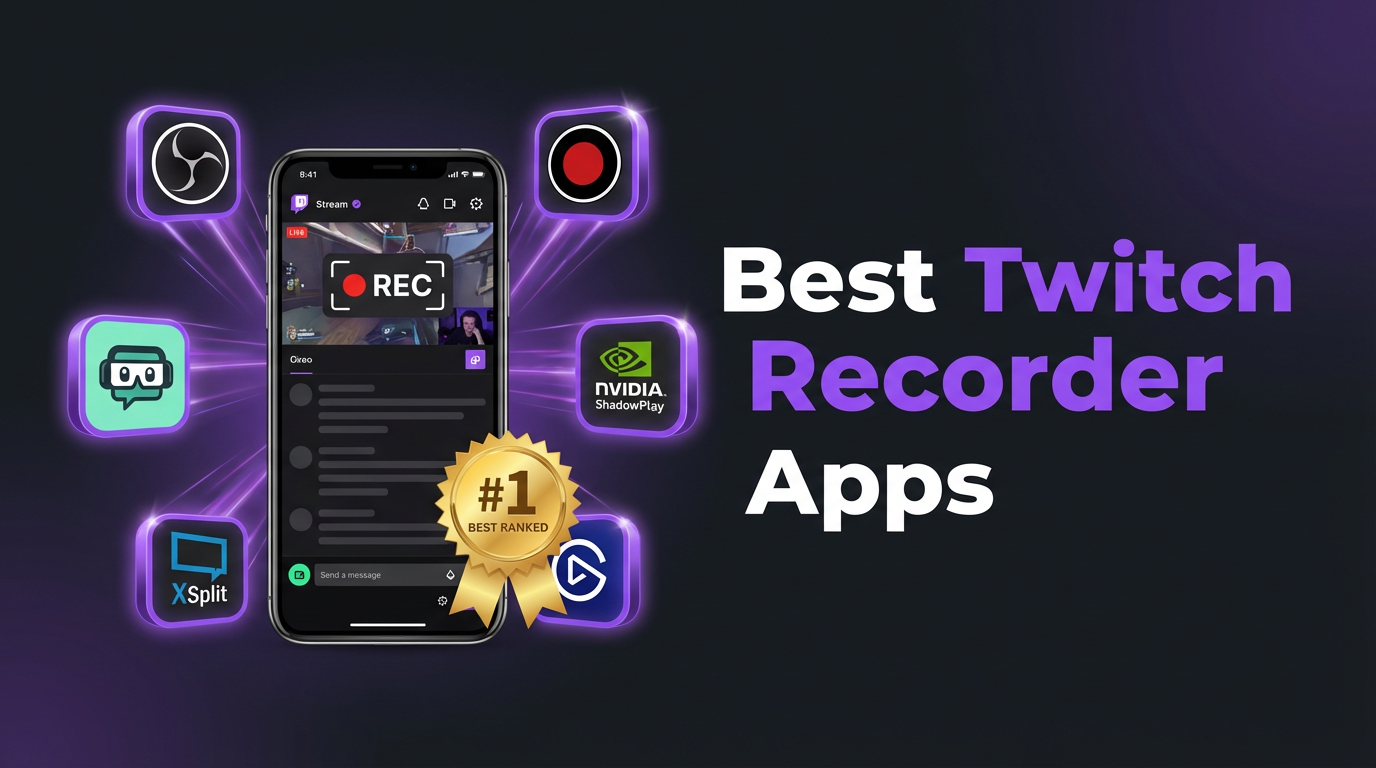
- Third-party apps — XRecorder, AZ Recorder, Record it!, etc. Extra features, same screen recording limitations.
Method 1: GREC — automatic cloud recording (recommended)
GREC is a cloud-based live stream recorder that captures Twitch streams automatically on remote servers. It doesn't screen record — it grabs the actual stream directly, independent of your phone or computer. With over 300,000 users and a 4.9/5 rating, it's the most popular option for a reason.
How to set up GREC for Twitch stream recording:
- Download GREC from the App Store or Google Play.
- Create an account — sign up with email, Google, or Apple.
- Search for Twitch channels — type any Twitch username and tap "Add to Auto Rec."
- That's it — GREC monitors that channel 24/7. When the streamer goes live, recording starts automatically in the cloud.
- Watch or download — you'll get a push notification when the recording is ready. Stream it in-app or download in HD.
Why GREC is the best method for Twitch:
- Fully automatic — no need to be online or start anything manually. GREC detects when a channel goes live and records it.
- Private viewing — cloud-based recording leaves no viewer footprint. Your username never appears in the streamer's chat or viewer list.
- Works with your phone off — recording happens in the cloud. Phone off, Wi-Fi off, airplane mode — doesn't matter.
- Captures from the first second — no missed intros. GREC starts recording as soon as the stream begins.
- HD quality — captures the actual stream feed, often better than a screen recording of compressed video.
- Multiple streams at once — record several Twitch channels simultaneously. Handy when two streamers you follow go live at the same time.
- No VOD expiration worries — your recordings are saved in GREC. No 14-day or 60-day countdown.
- Cross-platform — works for Twitch, Instagram Live, TikTok LIVE, and other platforms from a single app.
Pricing: Free tier available. GREC Premium starts at $4.99/week and includes unlimited auto-recording across all platforms.
Method 2: Built-in screen recording (iOS & Android)
Both iPhone and Android have built-in screen recorders. They'll capture whatever's on your display, including a Twitch stream playing in the app or browser.
On iPhone (iOS 14+)
- Add "Screen Recording" to Control Center (Settings → Control Center).
- Open the Twitch app and join the live stream.
- Swipe down from the top-right corner to open Control Center.
- Long-press the record button, enable the microphone, and tap "Start Recording."
- Switch back to Twitch. A red status bar means recording is active.
- When done, tap the red bar and confirm to stop. The video saves to Photos.
On Android (11+)
- Swipe down twice for Quick Settings. Look for "Screen Record" (add it via the pencil/edit icon if missing).
- Open Twitch and join the live stream.
- Tap "Screen Record" in Quick Settings. Choose media audio as the audio source.
- Switch back to Twitch. A recording indicator shows in the status bar.
- When done, pull down the notification shade and tap "Stop." Video saves to your gallery.
Pros:
- Free and built into the OS
- No extra app needed
- Captures video + audio
Cons:
- You must be watching — the stream has to be playing on your screen the entire time. For a 6-hour Twitch session, that's a real commitment.
- Your name appears in chat — you show up in the viewer count and can be seen in the channel's viewer list.
- You'll miss the start — by the time you get the notification and start recording, the intro is gone.
- Notifications get captured — texts, calls, and alerts appear in the recording.
- Battery drain — screen recording while streaming eats through battery and heats up your phone.
- One stream at a time — can't capture two Twitch channels simultaneously.
- Lower quality — you're recording compressed screen output, not the original stream.
Tip: Enable Do Not Disturb before recording so notifications don't clutter the capture.
Method 3: OBS Studio (desktop)
OBS Studio is free, open-source, and the go-to tool for recording and streaming on desktop. Since Twitch streams are fully viewable in a browser, OBS is a natural fit here.
How to record a Twitch stream with OBS:
- Install OBS Studio — download from obsproject.com (Windows, macOS, Linux).
- Open Twitch in your browser — navigate to the channel and wait for the stream to start.
- Add a "Window Capture" source in OBS — select the browser window showing the Twitch stream.
- Configure audio — add an "Audio Output Capture" source to record the stream's sound.
- Set output format — go to Settings → Output. Choose MKV or MP4, pick your preferred resolution and bitrate.
- Click "Start Recording" — OBS captures the browser window.
- Click "Stop Recording" when the stream ends. The file saves to your designated folder.
Pros:
- Free and open-source
- High-quality output with custom resolution, bitrate, and frame rate
- Supports multiple audio sources
- Works on Windows, macOS, and Linux
- Can record + stream simultaneously
Cons:
- Requires a computer — no mobile option
- Manual start — you need to click "Start Recording" before the stream begins
- You have to keep watching — the Twitch stream must be playing in your browser
- You're in the viewer list — the streamer can see you
- Learning curve — OBS has dozens of settings that can overwhelm beginners
- Missed beginnings — if the stream starts unexpectedly, you lose the first part
Method 4: Third-party screen recorder apps
Third-party recorders add features beyond what the built-in recorder offers: facecam overlays, editing tools, custom quality settings, and more.
Popular options
- XRecorder (Android) — No watermark, 1080p, floating control bubble, built-in editor. Free.
- AZ Screen Recorder (Android) — No time limit, external audio support, video trimming. Free with ads.
- Mobizen (Android) — Facecam overlay, Samsung-optimized, up to 1080p/60fps.
- Record it! (iOS) — Facecam overlay, basic editing, reaction-style recordings.
- DU Recorder (iOS/Android) — Screen recording + live streaming + built-in editor.
Pros:
- Facecam overlay for reaction-style recordings
- Built-in editing tools
- Custom resolution and frame rate
- Works on older OS versions that lack a built-in screen recorder
Cons:
- Same core limitations as screen recording — must be watching, visible in viewer list, miss the start
- Most show ads
- Some add watermarks unless you pay
- Battery drain and storage usage, especially for long Twitch sessions
Quick comparison table
| Feature | GREC | Screen Rec | OBS | 3rd Party |
|---|---|---|---|---|
| Automatic recording | ✓ | ✗ | ✗ | ✗ |
| Records from first second | ✓ | ✗ | ✗ | ✗ |
| No viewer footprint | ✓ | ✗ | ✗ | ✗ |
| Works offline / phone off | ✓ | ✗ | ✗ | ✗ |
| HD quality | ✓ | ✓ | ✓ | ✓ |
| Multiple streams at once | ✓ | ✗ | ✗ | ✗ |
| Zero battery/CPU usage | ✓ | ✗ | ✗ | ✗ |
| Mobile (no computer) | ✓ | ✓ | ✗ | ✓ |
| No VOD expiration | ✓ | ✓ | ✓ | ✓ |
| Free option | ✓ | ✓ | ✓ | ✓ |
| Facecam overlay | ✗ | ✗ | ✓ | ✓ |
Does Twitch detect recording?
No. Twitch does not detect or notify streamers when someone records their live stream. There's no technical mechanism in the Twitch platform that flags screen recording or external capture tools.
That said, there are two things worth knowing:
- Viewer list: If you're watching a Twitch stream to screen record it, your username shows up in the viewer list and chat viewer count. The streamer can see you're watching — they just can't tell you're recording.
- Future changes: Twitch could theoretically add detection features down the road. GREC's cloud-based recording would remain unaffected by any client-side detection since it never interacts with the Twitch app or website on your device.
If private viewing matters to you, GREC is the only method that leaves no public trace. Your account never joins the stream, and there's no on-device activity for Twitch to detect.
Frequently asked questions
Can I download Twitch VODs before they expire?
If you're the channel owner, you can download your own VODs from the Twitch dashboard. For someone else's VODs, there are third-party tools like Twitch Leecher, but they only work while the VOD still exists. Once it expires — 14 days for regular streamers, 60 for Affiliates and Partners — it's gone. GREC sidesteps this entirely by recording the live stream in real time, so expiration dates don't matter.
Is it legal to record Twitch live streams?
Recording Twitch streams for personal, private viewing is generally legal in most jurisdictions. However, redistributing, reuploading, or monetizing someone else's content without permission can violate copyright law and Twitch's terms of service. Always respect creators' rights.
Does GREC work with Twitch and other platforms?
Yes. GREC supports Twitch, Instagram Live, TikTok LIVE, and other live streaming platforms — all from a single app and subscription. You can track and auto-record channels across multiple platforms at the same time.
Why do Twitch VODs have muted sections?
Twitch runs an automated audio recognition system that detects copyrighted music in VODs. When it finds a match, it mutes that segment — sometimes entire chunks of a stream. This doesn't affect the live broadcast, only the saved VOD. Recordings made with GREC or screen recording capture the original audio as it played live, before any muting is applied.
Can I record a Twitch stream on my phone without screen recording?
Yes — that's exactly what GREC does. It records Twitch streams in the cloud without using your phone's screen recorder. You don't even need to have Twitch open. Just add the channel in GREC, and it handles everything automatically.
Can I record my own Twitch streams as a streamer?
Absolutely. Twitch lets you enable VOD storage in your channel settings, and most streaming software (OBS, Streamlabs) can save a local copy while you broadcast. GREC also works as a backup — it'll record your own channel just like any other, giving you a cloud copy independent of Twitch's VOD system.
Never miss a Twitch stream again
GREC records Twitch live streams automatically in the cloud — even when your phone is off.